

PadSeat gives every controller its own player in local co-op: in gameplay and in UMG and CommonUI menus. It works with PlayStation and Xbox controllers and the keyboard in the same session. Unreal Engine 5.6, 5.7 and 5.8, Windows.
Version 1.0.0. Everything below is covered by the automated tests that ship with the plugin (see Tests) unless it is marked untested. Also read: Node reference (every Blueprint node, with an example) and Customize screens (split-screen layouts, 5-8 players) and Make it your own (themes, your own widgets, every sentence, events only).
Quick start, 3 steps.
- Install. Put the plugin in your project's
Pluginsfolder (or install it from Fab once the listing is live) and tick PadSeat Local Co-op in Edit > Plugins. Restart the editor when it asks. - Set up. Click Tools > PadSeat > Set Up Local Co-op..., read the list of changes and click OK. PlayStation pads need no extra step.
- Play. Press Play with your pads connected. The first device to press a button plays player 1. On another pad, press Start (Xbox) or Options (PlayStation): player 2 joins. A PlayStation pad's light bar takes its player's color.
Check everything in Tools > PadSeat > Status. More in section 2.
1. What it fixes
In a stock Unreal project on PC, the keyboard and the first gamepad both belong to player 1. A second person picks up a pad and moves player 1. The engine's checkbox for this, Skip Assigning Gamepad to Player 1, fixes gameplay only. Menus still follow the wrong player: every pad's menu input lands one player off.
Since UE 5.6 the engine also has Device Mapping Policy = Create Unique Platform User For Each Device. It routes co-op correctly, but a single gamepad then drives nobody (solo play breaks). It can't switch at runtime, and it has no join flow.
PadSeat routes every device to the right player for both halves (gameplay input, and the Slate user that UMG and CommonUI use), and adds what a co-op game needs on top:
| You get | Details |
|---|---|
| Correct routing | Each pad drives its own player in gameplay (Enhanced Input), UMG focus and navigation, and CommonUI. |
| Solo and co-op in one build | Player 1 plays alone; a second person presses any button on their pad and joins as player 2 (their pad never moves player 1). Co-op ends when they leave. Solo mode, or a setting for single-player games, lets every pad drive player 1 instead. |
| Press-to-join and leave | Start/Options to join, hold Back/Create/Share to leave (a ring fills while you hold, and each player's card says which button). Configurable keys, max players, events. |
| Player 1's device | The first device to press a button plays player 1 by default: a pad or the keyboard. Or fix it: keyboard and mouse, any controller, or one controller type. |
| Keyboard options | Keyboard as its own player, shared with the first pad, or ignored in co-op. |
| Reconnect | An unplugged or switched-off pad returns to the same player. Player 1 is asked "keep their spot or remove them?" (or the seat waits, or the player is removed after a few seconds; your choice). Another pad can take over. |
| PlayStation + Xbox | DualSense, DualSense Edge and DualShock 4 read by PadSeat itself over USB and Bluetooth on UE 5.6, 5.7 and 5.8 (DualSense over Bluetooth checked on real pads; USB, DualSense Edge and DualShock 4 are protocol support, not yet checked on real pads: section 12), with rumble and the light bar in each player's color, mixed with Xbox pads and the keyboard. Each player's button icons follow their own pad. |
| Per-player UI | Nodes like "Create Widget For Player", "Which player sent this key", button prompts, colored focus outlines in shared menus. |
| Button icons | Xbox, PlayStation and keyboard icons (Kenney, CC0) that follow each player's own pad. |
| Co-op lobby | Join, pick a color and a character, ready up, countdown, open the level. One widget, every player on it at once. |
| Split screen | One dropdown per player count (2, 3, 4, 5-8 players), a one-node switch at run time, your own screen rects, and every joined player always gets a pawn and a view. |
| Per-player settings | Each player's own saved vibration, look, volume, color and character, plus per-player key rebinding on Enhanced Input. |
| Per-player rumble and volume | Rumble only one player's pad, scaled by their settings. UI sounds at each player's own volume. |
| Debugging | CoopKit.Dump and an on-screen routing overlay. |
| Developer virtual controllers | Play players 2-4 from the keyboard in PIE and standalone. Off in Shipping. |
| One-click setup | Tools > PadSeat > Set Up Local Co-op. Shows every change first, logs it, and has Undo. |
| No base classes | A GameInstance subsystem. Keep your own GameInstance, GameMode, PlayerController and widgets. |
2. Quick start (3 steps)
- Install. Put the plugin in your project's
Pluginsfolder (or install it from Fab) and tick PadSeat Local Co-op in Edit > Plugins. Restart the editor when it asks. In the game, players join by pressing Start (Xbox) or Options (PlayStation), or Enter on the keyboard, and leave by holding Back (Xbox), Create (DualSense) or Share (DualShock 4), or Backspace on the keyboard, until the ring fills. - Set up. Click Tools > PadSeat > Set Up Local Co-op... (or the Local Co-op toolbar button), read the list of changes and click OK. PlayStation pads need no extra step: PadSeat reads them itself.
- Play. Press Play with your pads connected. The first device to press a button plays player 1. On another pad, press Start or Options: player 2 joins. Each pad now moves its own player and its own menus, and a PlayStation pad's light bar takes its player's color. To leave, hold Back / Create / Share: each player's card shows their own button, and a ring fills while they hold.
To check everything, open Tools > PadSeat > Status. It shows each controller, which player it drives, the colors and any warnings.
Next steps (optional):
- Open
/CoopKit/Samples/Lobby_Sampleand play. Players join, pick a color and a shape and ready up, thenLocalCoop_Sampleopens with each player as their pick. InLocalCoop_Sample, A/Cross spins your shape and rumbles only your pad, D-pad Left/Right (or K/L) switches the split-screen layout, and Start/Options (or Tab, or Escape outside the editor) opens your own menu: Resume, Split screen, Player 1, Leave game. - Add a Co-op Lobby widget to your title screen (section 5, Lobby).
- To start routing only from a lobby, turn off Auto Activate and call Activate yourself.
3. PlayStation and Xbox controllers
Xbox pads reach Unreal through XInput, the engine's default. For PlayStation pads, PadSeat has its own input layer.
PadSeat's native PlayStation layer (default)
PadSeat reads DualSense, DualSense Edge and DualShock 4 controllers itself on Windows, over USB and Bluetooth, through the HID functions in the Windows SDK. No extra driver, DLL or Steam is needed, and it works the same on UE 5.6, 5.7 and 5.8.
- Every pad is its own device. Each controller gets its own Unreal input device, so PadSeat's routing, joining, reconnect, menus and PlayStation button icons work exactly as with Xbox pads.
- All buttons and axes: Cross, Circle, Square, Triangle, L1/R1, L2/R2 (button and analog), L3/R3, Create/Share (Special Left), Options (Special Right), D-pad and both sticks. PadSeat also adds keys for the touchpad click, the PS button, the mute button and the touch surface (see Touchpad below).
- Stick drift fix: when a pad connects, PadSeat measures where its sticks rest and takes that offset off every reading (see Sticks below).
- Rumble goes to that player's pad only (Play Rumble For Player, or any force feedback on the player's controller).
- Light bar = player color. Each pad's light bar shows its player's PadSeat color, and the DualSense player LEDs show the player number (one LED for player 1, two for player 2...; numbers stay with the player). A pad nobody has joined yet stays dark (or a dim white with Unjoined Pad Light = Dim). Setting: Pad Lights Follow Player Colors.
- Setting: Project Settings > PadSeat > PlayStation Controllers > PlayStation Route: PadSeat native (default), GameInput, or Off. Restart after changing it.
- No double input with Steam: when the game is started from Steam with Steam Input virtual pads, the native layer stays off and Steam's pads are used (Yields To Steam Input, on by default). With DS4Windows running, set the route to Off.
- Console:
PadSeat.PSlists every controller it reads: model, USB or Bluetooth, input device, reports read, writes, last light and rumble values. - Automation runs: in
-unattendedruns (automated tests, build machines) the layer stays off so real pads cannot disturb the tests.-PadSeatNativePSturns it on anyway;-NoPadSeatNativePSturns it off.
What was checked on real hardware: the layer itself with two DualSense pads over Bluetooth on UE 5.6, 5.7 and 5.8 (both pads found and read with their checksums, 0 bad of about 10,000 reports each, sticks centred at rest, each pad its own player with PlayStation prompts, light bar color, player LEDs and rumble sent to the right pad with no failed writes; a tester felt the rumble). Then full play-through rounds with three DualSense pads over Bluetooth on UE 5.7: join, reconnect, menus, rumble, light bar colors, touchpad, switch-off detection and the keyboard seat, up to 8 players with the keyboard and four simulated pads. Not yet checked on hardware: DualSense over USB, DualSense Edge, DualShock 4 (USB, Bluetooth, the USB adapter). Their report layouts follow the published protocol and are covered by the unit test CoopKit.PlayStationReports.
Other routes
| Route | UE 5.6 | UE 5.7 | UE 5.8 | Setup |
|---|---|---|---|---|
| Steam Input (game started from Steam) | Yes | Yes | Yes | Nothing. Steam turns each pad into an Xbox pad with rumble, so icons show Xbox. |
| DS4Windows / DSX (player-side tools) | Yes | Yes | Yes | Nothing in the project; set PlayStation Route to Off. The pad appears as an Xbox pad. |
| GameInput (engine plugins GameInput + GameInputWindows). Limited: in our test with two DualSense pads over Bluetooth, GameInput passed only one pad to the game and no rumble. | Not available (empty plugin in the 5.6 launcher build) | Yes | Yes | Set Up Local Co-op + PlayStation Controllers... enables the plugins, writes the device configs and sets PlayStation Route to GameInput (so the native layer does not read the same pads). |
- Mixing is fine: Xbox pads on XInput, PlayStation pads on the native layer, and the keyboard as its own device.
- One route per pad: if two routes read the same pad it shows up twice. The native layer warns in the log when GameInput is also set up to read controllers.
- Pairing: hold PS + Share (DualShock 4) or PS + Create (DualSense) until the light flashes, then add it in Windows Bluetooth settings.
- Labels: each device reports a label (
Xbox controller (XInput),DualSense (PadSeat native),DualSense (GameInput)) inCoopKit.Dump, the join panel and Get Device Description.
Button icons per player
Each player has a pad type (Keyboard, Xbox, PlayStation, Generic), taken from the device they used last. On Player Pad Type Changed fires when it changes.
- Co-op Button Prompt (UMG palette > Local Co-op): set a gamepad Key (and optionally a Keyboard Key). It shows that player's icon from PadSeat's Icon Set and switches live when that player changes pads. Keys without an icon (or with Use Icon Textures off) are drawn with shapes instead: A/B/X/Y in Xbox colors, cross/circle/square/triangle for PlayStation, L1/R1 vs LB/RB, Options vs Start, or a keycap.
- Icon Set: the bundled
/CoopKit/Icons/DA_PadSeatIconshas 64 px icons for 32 Xbox keys, 32 PlayStation keys and 25 keyboard and mouse keys (face buttons, shoulders, triggers, sticks and stick clicks, d-pad, Start/Options, Back/Share, WASD, arrows, Enter, Space, Escape, Tab, Shift, Ctrl, mouse buttons...). To use your own art, make a Co-op Icon Set data asset (Xbox, PlayStation and Keyboard Mouse maps of key to texture) and pick it in PadSeat's settings. Tools > PadSeat > Rebuild Button Icons re-imports the bundled set. - Get Key Icon For Player / Get Key Icon return the texture, for your own widgets.
- Get Key Name For Player / Get Key Name For Pad Type give the text ("Cross", "A", "Enter").
- CommonUI: with PadSeat routing, CommonInput's own per-player gamepad detection works when your controller data assets map the hardware ids (
XInputInterface/XInputController,GameInput/DualSense,GameInput/DualShock4). Or fill in CommonUI Gamepad Name Xbox / PlayStation in PadSeat's settings, and PadSeat sets each player's CommonInput gamepad name itself.
4. How it works
Devices and players
Every input source is a device: the keyboard + mouse, each gamepad, and each virtual controller. Every local player owns devices. PadSeat moves each device to the right platform user (gameplay: device > platform user > local player). It also gives Slate the owning player's ControllerId as the user index, so UMG focus, CommonInput and the CommonUI action router agree.
A pad that has not joined (in co-op) is parked on a reserved platform user that no player owns. It drives nobody, but PadSeat still sees its Join press.
Modes
| Mode | Behaviour |
|---|---|
| Auto (default) | Solo until a second player joins: every pad drives player 1. The last pad player 1 used is player 1's own pad. Co-op from 2 players. Back to solo when they leave. |
| Solo | Always one player. Joining is refused. Switching to Solo makes the other players leave. |
| Coop | Always co-op: each device drives only its own player. Pads that have not joined drive nobody. |
Switch at runtime with Set Mode or the console command CoopKit.Mode Auto/Solo/Coop.
Joining and leaving
| Join policy | How a pad becomes a player |
|---|---|
| Press To Join (default) | The pad presses a Join Key (default Start / Options). The press is consumed, so it doesn't also pause the game. |
| Join On Connect | Every pad joins as soon as it connects. |
| Manual | Only your calls to Join With Device. |
- Pads that have not joined stay quiet. Until a pad joins it belongs to nobody: it never moves player 1, player 1's rumble and light color never reach it, and a PlayStation pad's light bar stays dark. Unjoined Pad Light (Project Settings > PadSeat > PlayStation) can make it a dim white glow instead, so you can see the pad is on.
- Join With Any Button (on): any face button, Start / Options or Back / Create on a pad that has not joined joins it as a new player, and a keyboard that belongs to nobody joins with any key (not Escape). Off: only the Join Keys (and Enter for the keyboard) join; other presses do nothing except flash the "Press ... to join" line (event On Unjoined Device Pressed).
- Single-player games: use Solo mode (every pad drives player 1), or turn on Unjoined Pads Drive Player 1 In Solo for Auto mode (the old behavior: while only player 1 is in, any pad drives player 1).
- Join cards: the join panel and the lobby show a card only for players who are in, with "Hold [their button] to leave" on the card, plus one "Press [Options] [Start] [Enter] to join" line under the cards with the buttons of the free pads while seats are free. 5-8 players get two rows of cards. Cards are always in player-number order. Text on each card is black or white, whichever reads better on that player's color. Turn on Show Empty Seat Cards for a card per seat.
- Numbers and colors stay with the player. When player 2 leaves, player 3 is still "P3" in the same color. Views and cards go by number: P1's view first, then P2's, and so on, also after someone leaves and rejoins. The next player to join takes the free number 2 and its color, unless another player picked that color: then the first free one. Picking a color (lobby Left/Right) skips colors other players hold. Cards list only devices that work right now, and the join line shows only buttons that can join right now. Get Player Number gives the number for your own UI.
- A joining pad first takes a player that has no pad: one you created yourself (a lobby that makes 4 players up front), or one whose pad was unplugged. Only then is a new local player created (Join Fills Empty Players).
- Set Joining Enabled opens and closes joining (for example only in a lobby). Max Players caps the count (1-8; PadSeat raises the viewport's split-screen limit when needed).
- Leave: hold a Leave Key (default Back / Create / Share) for Leave Hold Seconds (1.5 s), or call Leave Player. The keyboard player holds a Keyboard Leave Key (Backspace). Player 1 can never leave: for player 1 the same hold switches device (below). The local player and its pawn are removed unless you turn off Remove Player On Leave. Their pad becomes free (light bar dark) and can join again with Start / Options.
- Players can see how to leave: the join panel and lobby cards say "Hold Create to leave" with each player's own button (Get Leave Hint Text gives you the same text for your HUD). While a player holds the button, a ring in their color fills on their screen and disappears if they let go early (Show Leave Hold Ring; restyle it with Leave Hold Widget Class, or read Get Leave Hold Progress and draw your own). The sample's pause menu has a Leave game button.
- Player 1's own device comes from Player 1 Device (below): by default the first device to press a button.
Keyboard modes
| Keyboard mode | Behaviour |
|---|---|
| Own Player (default) | Keyboard + mouse are player 1's device. Every pad that joins becomes a new player, so keyboard + pad co-op works. |
| Shared With First Gamepad | The first pad that joins while player 1 has no pad joins player 1. Keyboard and that pad both drive player 1. |
| Disabled In Coop | Keyboard keys are ignored while 2+ players are in. Console keys still work. Solo play keeps the keyboard. |
Player 1's device
Player 1 Device (Project Settings > PadSeat > Player 1) decides who plays player 1:
| Choice | Player 1 is |
|---|---|
| First device to press a button (default) | Whatever presses first: the keyboard, or a pad. If a pad is first, the keyboard is free: Enter gives it its own seat. |
| Keyboard and mouse | The keyboard. Pads join as players 2 and up. |
| Any controller | The first pad to press a button. The keyboard is free (Enter: own seat). |
| Specific controller type | The first pad of Player 1 Controller Type (for example PlayStation) to press a button. Other pads join as players 2 and up. |
- Change it while the game runs with Set Player 1 Device (the sample's menu has a Player 1 button). A pad that no longer fits is let go and can join again. When the keyboard comes back to player 1 from its own seat, that seat is removed if it had no pad, so no empty seat or view is left.
- Get Player 1 Device Id and Describe Player 1 Device tell you who it is now ("Player 1: DualSense (first device to press a button)"). Tools > PadSeat > Status and
CoopKit.Dumpshow it too. - A free keyboard drives nobody. To switch it off completely, empty Keyboard Join Keys. In the editor, Escape, the F keys and Ctrl/Alt shortcuts still work, so you can always stop Play.
Switching device (player 1)
Player 1 cannot leave, but can change device. Player 1's card says "Hold [Backspace] to switch to a controller" on the keyboard, or "Hold [Create] to switch device" on a pad.
- Player 1 holds the button. A ring in their color fills on their screen ("Switch device...").
- Their screen says "Press any button on the controller you want to use (Esc to cancel)". On a pad it also offers "or Enter to use the keyboard" when the keyboard is free, and Circle / B cancels.
- The first free device pressed becomes player 1's. Pads of other players are never taken. Player 1 keeps their number, color, pawn and settings. The old pad becomes a free pad (it can join as its own player); a freed keyboard can join with Enter.
- If nobody picks a device within Device Switch Seconds (10 s), player 1 keeps the old one.
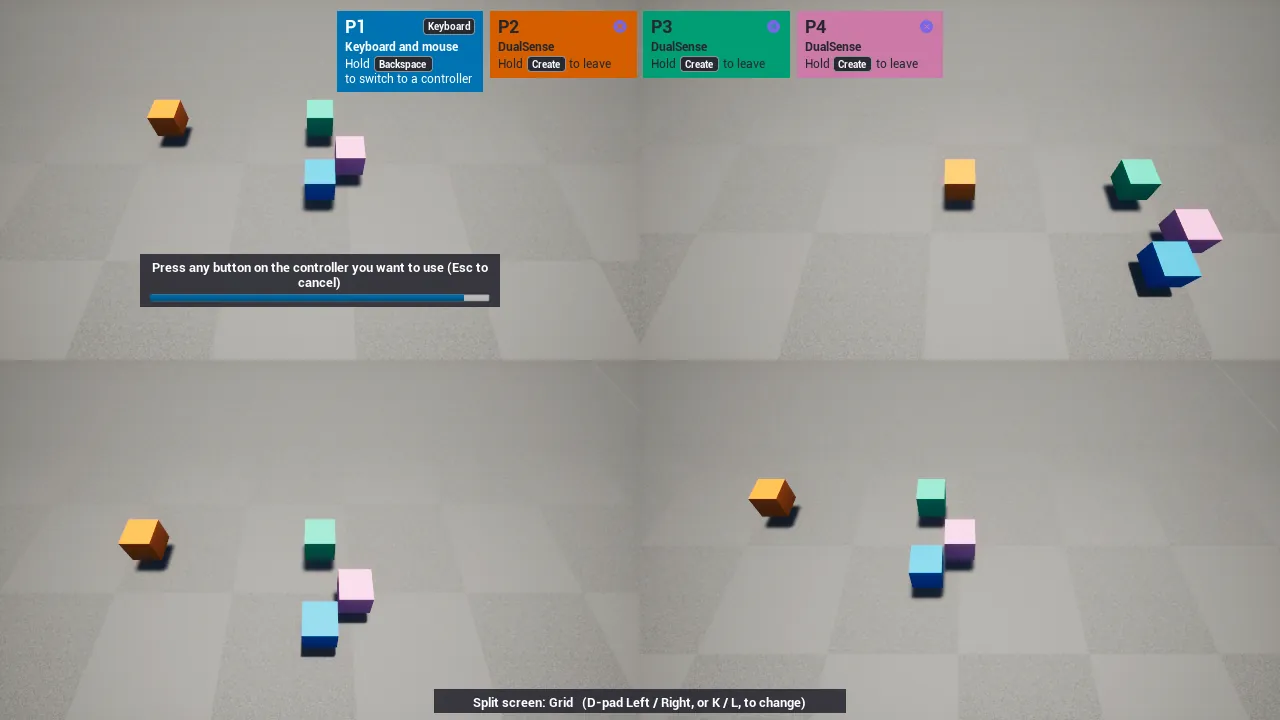
While player 1 chooses, the old device does nothing in the game. Turn it off with Player 1 Can Switch Device; then player 1's card has no hold line. Games can start a switch for any player with Begin Player Device Switch (for example from an options menu), stop it with Cancel Player Device Switch, and check Is Player Switching Device. With Keyboard Mode Shared With First Gamepad the keyboard always stays with player 1, so a switch only changes player 1's pad.
Reconnect
- Unplugging a pad fires On Device Lost.
- A player who still has a live device (the keyboard, or another pad) keeps playing: no overlay and no question, just a 3 s note on their screen ("Controller disconnected. Keyboard still active."). Show Player Toast shows such notes from your own code.
- When the player has no live device left, On Player Disconnected fires and the Disconnected Widget Class appears on that player's screen (a built-in message by default; set your own widget, or turn it off). If that is player 1, nobody is asked about it: the next device that presses a button and fits Player 1 Device takes player 1 over.
- What happens next is the Disconnect Policy (Project Settings > PadSeat > Reconnect, or Set Disconnect Policy):
| Disconnect Policy | What happens (players 2-8) |
|---|---|
| Ask player 1 (default) | Player 1 sees "Player 3's controller disconnected. Keep their spot or remove them?" with a bar in player 3's color. Keep their spot: the seat waits. Remove them: the player leaves. |
| Keep seat (wait for reconnect) | The seat waits until the pad comes back, or another pad presses Join and takes it. |
| Remove after N seconds | The player leaves if the pad stays away for Remove After Seconds (10 s by default). |
- Answering: only player 1's own devices answer, whatever input mode the game is in.
- Pad: D-pad or stick to move, Cross / A to choose, Circle / B to keep their spot.
- Keyboard: arrow keys or Tab to move, Enter or Space to choose, Backspace to remove, Escape to keep (in the editor Escape stops Play instead).
- Mouse: player 1's cursor shows while the question is up (Disconnect Prompt Shows Mouse Cursor), so Keep and Remove can be clicked; the game's input mode comes back afterwards.
- The question shows these hints with player 1's own button icons. Keep is highlighted first.
- If the pad comes back before anyone answers, the question closes and the player has their seat, color and light bar back. On Player Reconnected fires.
- Want your own question screen? Turn off Show Disconnect Prompt, show your UI on On Player Disconnected, and call Keep Disconnected Player or Remove Disconnected Player. Get Players Awaiting Decision lists who is waiting. To restyle PadSeat's prompt, subclass Co-op Disconnect Prompt and set Disconnect Prompt Class.
- Replugging the same pad returns it to the same player.
- Another free pad pressing Join takes over the disconnected player. The old pad becomes a free pad.
- Switching a PlayStation pad off over Bluetooth: Windows often keeps the pad's read open with no error. PadSeat's native layer notices the silence instead: a DualSense or DualShock 4 sends input many times a second, so a second without any input means it is gone (console
PadSeat.PS.SilenceTimeoutchanges the second). It also listens for Windows' device-removal message and checks quiet pads with a small output write. Either way the player is disconnected within about a second and the policy above applies. - "stopped responding (error 1167)" right after start: Windows re-creates a Bluetooth pad's connection just after the pad wakes up. PadSeat reopens it within a few seconds with the same device id, before anyone has joined, so seats are not affected.
Make it your own
Every piece of PadSeat's UI can be restyled, replaced or switched off without C++: a UI Theme data asset (fonts, sizes, colors, corners, the hold ring, keycaps, UI sounds), a widget class per piece (your own Widget Blueprint, or None), UI Text for every sentence (translatable, replaceable, readable device names), and Built-in UI: off for teams that build all of their own screens from the events. The samples ship an example theme. Full page: PadSeat: make it your own.
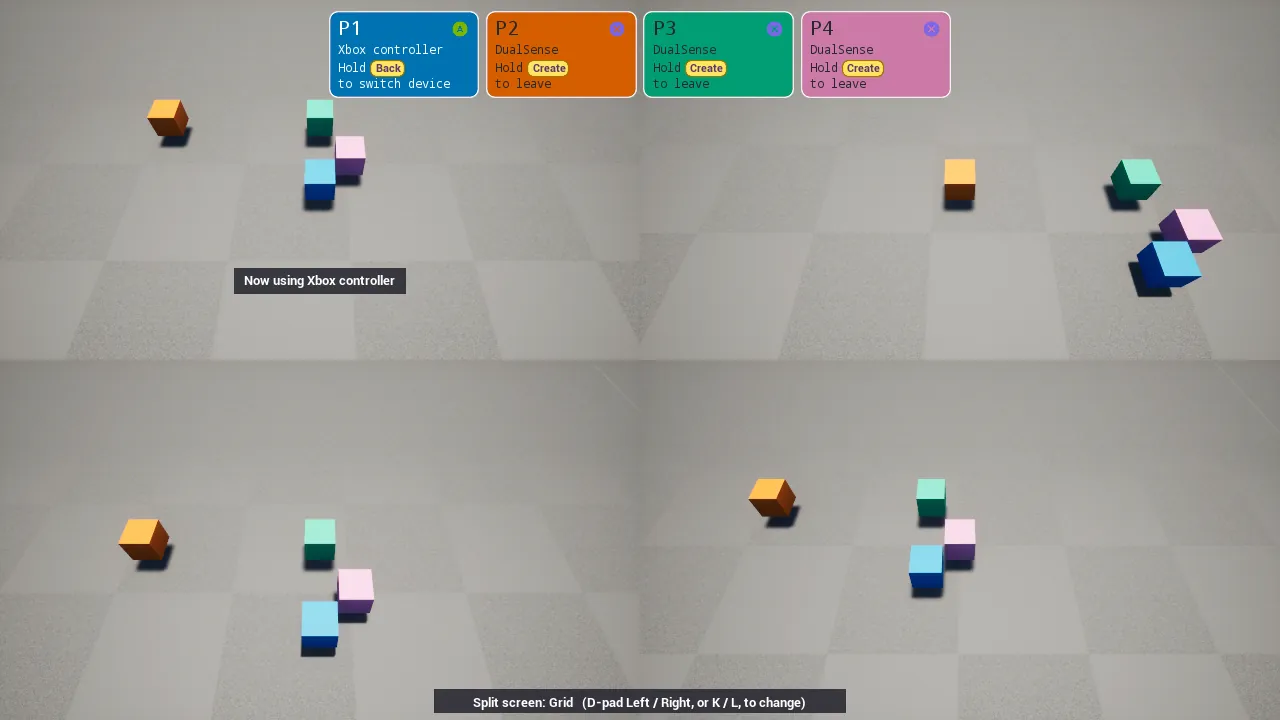
5. Blueprint reference
Get Local Co-op (PadSeat), or Get Game Instance Subsystem > Local Co-op Subsystem (PadSeat).
Subsystem functions
| Node | What it does |
|---|---|
| Activate / Deactivate / Is Routing Active | Start or stop routing (Auto Activate starts it for you). |
| Set Mode / Get Mode / Is Coop Active | Auto, Solo, Coop; whether co-op routing is on now. |
| Set Joining Enabled / Is Joining Enabled | Open or close joining. |
| Set Join Policy / Get Join Policy | Press To Join, Join On Connect, Manual. |
| Set Max Players / Get Max Players | 1-8, player 1 included. |
| Join With Device | Join a device yourself (works even when joining is off). Returns the player index or -1. |
| Leave Player | Make a player leave (not player 1). |
| Add Join Panel / Create UI Widget | Create the join panel (Join Panel Class) or any built-in piece from its widget class; nothing when that piece is off. |
| Get / Set / Reset UI Widget Class | Which widget class a piece uses; change it while the game runs (None turns the piece off). |
| Set Built-in UI Enabled / Is Built-in UI Enabled | PadSeat's own widgets on or off (off: events and nodes only). |
| Set UI Theme / Get UI Theme / Get Active Theme | Switch the UI Theme while the game runs; the theme in use. |
| Get UI Text / Set UI Text / Get Default UI Text | Every sentence players read: your text, or the built-in (translatable) one. |
| Get Device Display Name | "DualSense", "Xbox controller", "Keyboard and mouse" (translatable). |
| Begin Player Device Switch / Cancel Player Device Switch / Is Player Switching Device | Let a player pick another device (the next free pad pressed, or Enter for a free keyboard); they keep their number, color and pawn. |
| Set Keyboard Mode / Get Keyboard Mode / Is Keyboard Active | Keyboard options. |
| Get Player Index For Device / For Slate User | Who a device or Slate user belongs to. |
| Get Gamepads For Player / Get Num Players / Is Player Disconnected | Player state. |
| Get Players / Get Devices | Snapshots for UI (index, ControllerId, platform user, pads, keyboard, disconnected, color, pad type; device labels and routing). |
| Get Device Pad Type / Get Device Description / Get Player Pad Type | Xbox, PlayStation, Keyboard, Generic, and readable names. |
| Get Player Color / Set Player Color / Reset Player Colors | Player colors (default: colorblind-safe Okabe-Ito). |
| Get Disconnected Widget | The "controller disconnected" widget on a player's screen, if any. |
| Set Split Screen Enabled / Is Split Screen Enabled | Split screen on or off at runtime (off: everyone shares player 1's view). |
| Set Split Screen Layouts | 2 players: Horizontal or Vertical. 3: Favor Top, Favor Bottom, Vertical, Horizontal. 4: Grid, Vertical, Horizontal. |
| Set Custom Split Screen Layout / Reset Split Screen Layouts | Your own rects per player count (0-1 screen space), and back to the engine's. |
| Get Player Screen Rect | The part of the screen a player sees. |
| Play Rumble For Player / Stop Rumble For Player | Rumble one player's pads only, scaled by their Vibration Strength (nothing when their Vibration is off). |
| Play Sound For Player / Get Player Volume | A 2D (UI) sound at that player's own volume; returns nothing when they muted it. |
| Get Player Settings / Save Player Settings / Reset Player Settings | Each player's own settings object (section 6, Per-player settings). |
| Set Player Character / Get Player Character Index / Get Player Pawn Class | Character select from your own screen; the Co-op Lobby uses these. Picks last for the session and are saved per player. |
| Set Virtual Controllers Enabled | Developer tool (see section 8). |
| Get Debug Report / Set Debug Overlay Visible | What CoopKit.Dump prints; the on-screen overlay. |
Events
On Player Joined, On Player Left, On Device Assigned, On Device Lost, On Player Disconnected, On Player Reconnected, On Coop State Changed, On Join Refused (reason: Joining Disabled, Solo Mode, Full, Create Failed, Not Active, Invalid Device), On Player Pad Type Changed, On Players Changed (anything changed: refresh your lobby UI).
Library nodes (Local Co-op category)
| Node | What it does |
|---|---|
| Create Widget For Player | Create a widget owned by one player, add it to that player's screen area (split-screen aware), give that player's focus to it. |
| Focus Widget For Player | Give one player's focus to a widget. Each player keeps their own focus, even in a shared menu. |
| Get Player Index From Key Event / Pointer Event / Focus Event | Which player sent this input (use in On Key Down, On Focus Received...). |
| Get Player Index Of Controller | 0-based player index of a PlayerController. |
| Is Widget Focused By Player / Get Players Focusing Widget | Who is on a widget. |
| Get Key Name For Player / For Pad Type, Get Friendly Key Name | "Cross" vs "A", "Options" vs "Start". |
| Get Join Prompt Text | "Press Start (Xbox) / Options (PlayStation) to join", built from your Join Keys. |
| Describe Player Slot | Text for a lobby card ("DualSense", "Keyboard and mouse", "Controller disconnected", or the join prompt). |
| Get Key Icon For Player / Get Key Icon | The icon texture for a key on the pad a player uses now, or for a pad type. |
| Get Pawn Class For Controller | The pawn a player picked in the lobby, else your fallback. Call it from your game mode's Get Default Pawn Class For Controller override. |
| Wait For Player Key (async) | Waits for the next key from one player's own devices only; other players' keys are ignored. On Key Pressed, On Cancelled (Escape or Back/Share), On Timed Out. |
| Rebind Key For Player / Get Player Mapped Key / Reset Key For Player | Per-player rebinding (section 6). |
| Register Mapping Context For All Players | Registers an Input Mapping Context's player-mappable keys with every player's Enhanced Input user settings. |
Widgets
| Widget | Use |
|---|---|
| Co-op Join Panel (UMG) | One card per player slot: device name, Accept prompt, join prompt, disconnected state. Updates itself. Subclass it in a Widget Blueprint and restyle in On Slots Refreshed. Enable Joining While Visible makes it a lobby. |
| Co-op Join Panel (CommonUI) | The same as an activatable widget for your CommonUI stack. Opens joining while active. |
| Co-op Disconnected Widget | The built-in reconnect message. Subclass it or replace it via settings. |
| Co-op Button Prompt | A per-player button glyph (section 3). |
| Co-op Focus Panel | Wrap a shared menu in it: each player's focus gets an outline in their color with a P1/P2 tag. Players on the same widget get nested outlines. Get Highlights returns the rects for your own drawing. |
| Co-op Lobby | The lobby screen below. |
Lobby
Co-op Lobby (UMG palette > Local Co-op) is one shared screen. Every player uses it at once with their own pad:
| Input | Effect |
|---|---|
| Start / Options on a new pad | Joins (the lobby opens joining while it is on screen and restores your setting when it closes). |
| Left / Right (d-pad, stick, arrows, A/D) | Next free color (each color is used once). Saved in that player's settings. |
| Up / Down (d-pad, stick, arrows, W/S) | Next character, when Characters is filled. With Unique Characters, taken ones are skipped. |
| A / Cross (Enter, Space for the keyboard player) | Ready / not ready. |
| B / Circle (Escape) | Not ready. |
When at least Min Players To Start players are ready, a Countdown Seconds countdown runs (any change cancels it). Then On Lobby Start fires and Level To Open opens, if set. On Player Ready Changed reports each ready press. A join or leave resets the countdown.
Characters is a list of name, pawn class and optional portrait. Each player's pick lasts for the session (it survives Open Level) and is saved in their settings. In your game mode, override Get Default Pawn Class For Controller and return Get Pawn Class For Controller (the sample game mode does this). Subclass the lobby in a Widget Blueprint to restyle it (On Lobby Refreshed runs after every change), or call Handle Lobby Key from your own layout.
Touchpad and PlayStation buttons
PadSeat's native PlayStation layer sends these keys. Bind them in Enhanced Input like any gamepad key; they are in the key picker under PadSeat (PlayStation).
| Key | What it is |
|---|---|
| PlayStation Touchpad Click | The touchpad pressed down. |
| PlayStation PS Button | The PS button. |
| PlayStation Mute Button | The DualSense mute button. |
| PlayStation Touch Finger 1 / Finger 2 | A finger on the touch surface (a button: down while touching). |
| PlayStation Touch Finger 1 X / Y, Finger 2 X / Y | Where the finger is, 0-1 (X left to right, Y top to bottom). |
- The touchpad click is its own key, so a game can tell it apart from Create. To also send it as Gamepad Special Left (Unreal's old PlayStation convention), turn on Touchpad Click Is Special Left.
- Get Player Touchpad returns a player's touch surface in Blueprint: the click and up to two fingers.
- DualSense and DualShock 4 both have the touch surface. It is read from the full report (USB, and Bluetooth once PadSeat has sent its first light update).
Sticks: drift and dead zones
Worn sticks drift: they rest a little off-centre, so a character creeps without anyone touching the pad. PadSeat corrects each stick of each pad:
- Calibration: when a pad connects, PadSeat waits until it is idle, measures where each stick rests for half a second, and takes that offset off every reading. Full tilt still reaches 1. Calibrate Sticks For Player measures again on demand (ask the player to let go of the sticks).
- Radial dead zone (default 0.08): readings shorter than this count as 0. The direction is kept, so diagonals stay smooth.
- Outer dead zone (default 0.98): readings longer than this count as full tilt.
- Anti-dead-zone (default 0): the smallest output just past the dead zone, for games that add their own dead zone on top.
Each player has their own settings per stick (Set Stick Dead Zone / Get Stick Dead Zone), saved with their Player Settings. Is Stick Drift Detected returns true when a stick rests further off-centre than Stick Drift Threshold (0.1); use it to show a "recalibrate" prompt.
| Pads | Where the correction happens |
|---|---|
| PlayStation (native layer) | In the native layer, on the raw readings, before Unreal sees them. |
| Xbox (XInput) and GameInput pads | In PadSeat's input routing: it replaces each stick event with the corrected value (setting Correct Engine Gamepad Sticks, on). These pads only report a stick when it moves, so calibration uses the last reading. |
| Developer virtual controllers | Not corrected (they are exact). |
Keyboard as its own player
By default the keyboard and mouse belong to player 1. In Auto mode, player 1 can also have a pad: the pad they used while playing solo.
To make the keyboard its own player during co-op, press Enter on the keyboard (setting Keyboard Join Keys), or call Join Keyboard As Own Player. This works when player 1 also has a pad. The keyboard becomes a new player (or fills an empty seat), and player 1 keeps the pad.
- Can Keyboard Join tells you when this is possible, so you can show the hint.
- The keyboard player gets keyboard prompts, keyboard menus and keyboard gameplay. The mouse cursor in menus stays with player 1; mouse gameplay input follows the keyboard.
- Hold Backspace (setting Keyboard Leave Keys, held for Leave Hold Seconds) to send the keyboard player away. The keyboard goes back to player 1.
Player cards
The join panel (Co-op Join Panel) shows one card per player: the number, the player's color, their device ("DualSense", or a Keyboard badge for the keyboard player) and "Hold [Create] to leave". Add it with Add Join Panel (it uses Join Panel Class from Project Settings) or add it to the viewport yourself; it covers the screen and places the cards itself. Each card is a Co-op Player Card widget (Player Card Class), so you can replace it with your own design (see Make it your own). Card Mode (Project Settings > PadSeat > Player Cards, or Set Card Mode at run time) decides where they go:
| Card Mode | What players see |
|---|---|
| Top row (default) | One row at the top center (two rows for 5-8 players). |
| On each player's view | Each card at the top of that player's own split view; nothing covers the middle of the screen. |
| Hidden | No cards. The "Press ... to join" line still shows while someone can join. |
| While joining | The cards show when a player joins, leaves or reconnects, and fade out Card Auto Hide Seconds (4 s) later. |
| Custom | No built-in cards or join line. Build your own: Get Player Cards gives every player's number, color, text color, device text, pad type, leave hint and leave button, in number order; On Player Card Data Changed tells you when to refresh; Get Join Hint gives the join line. |
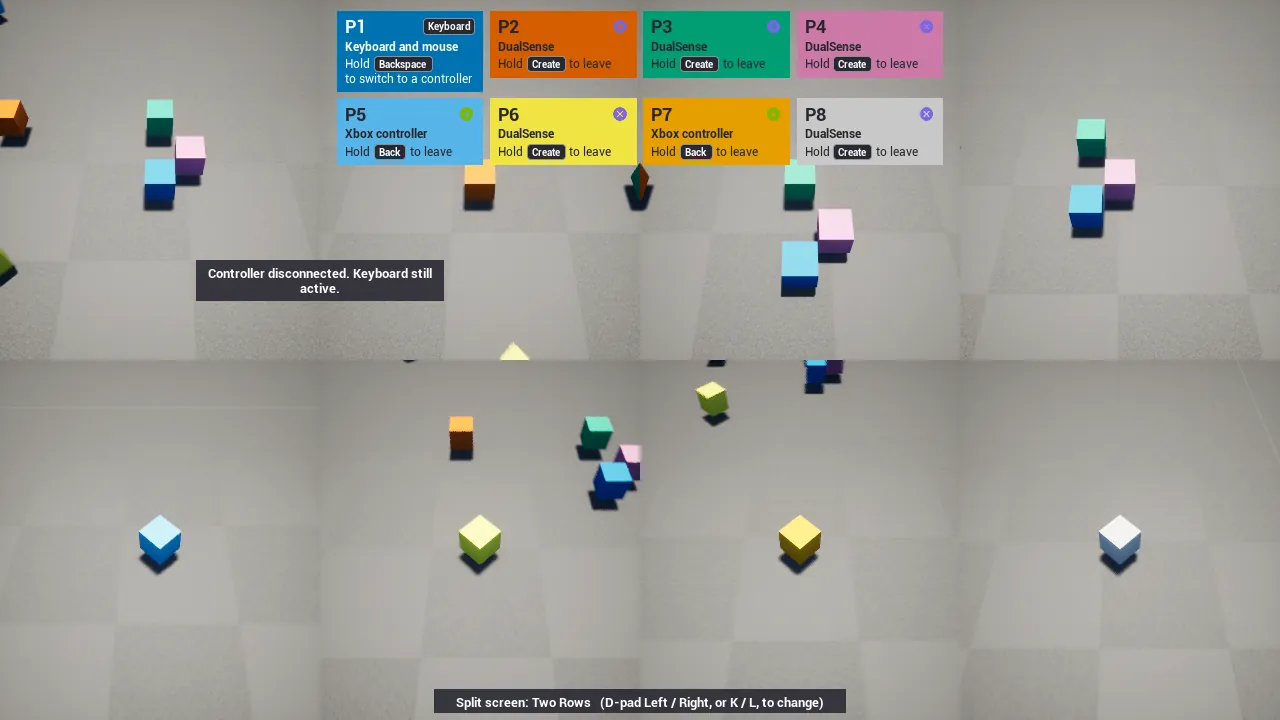
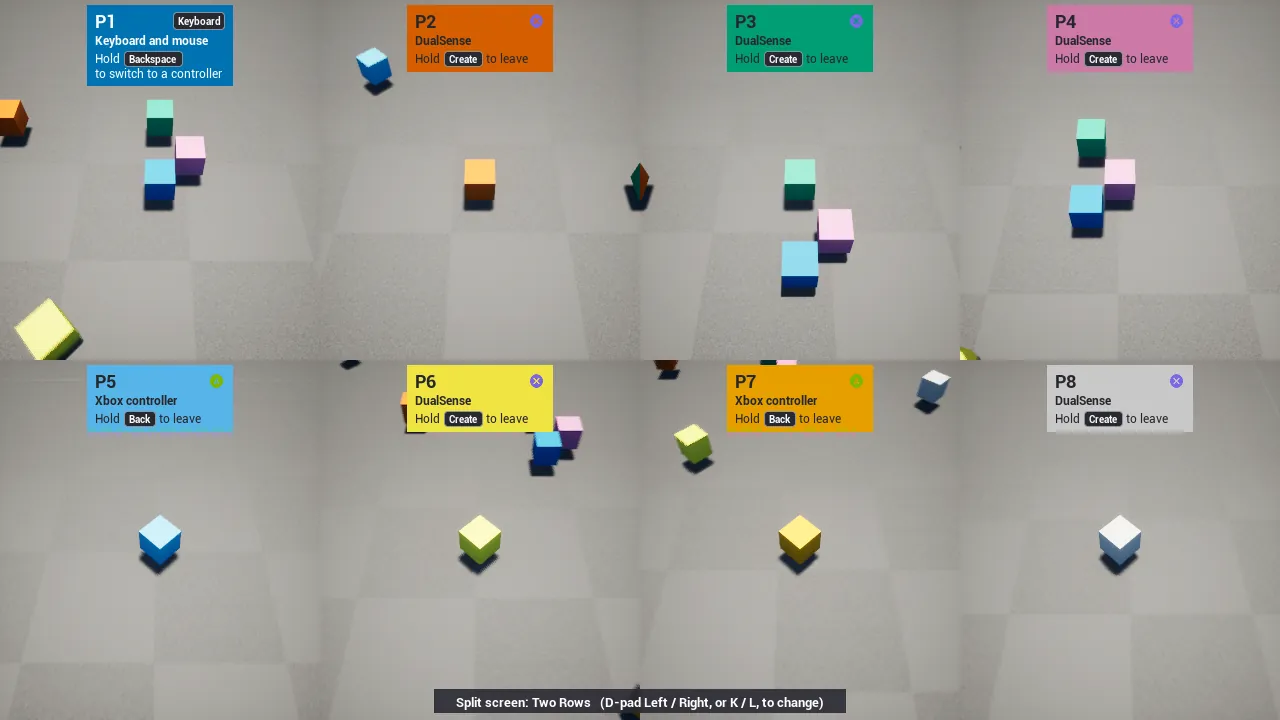
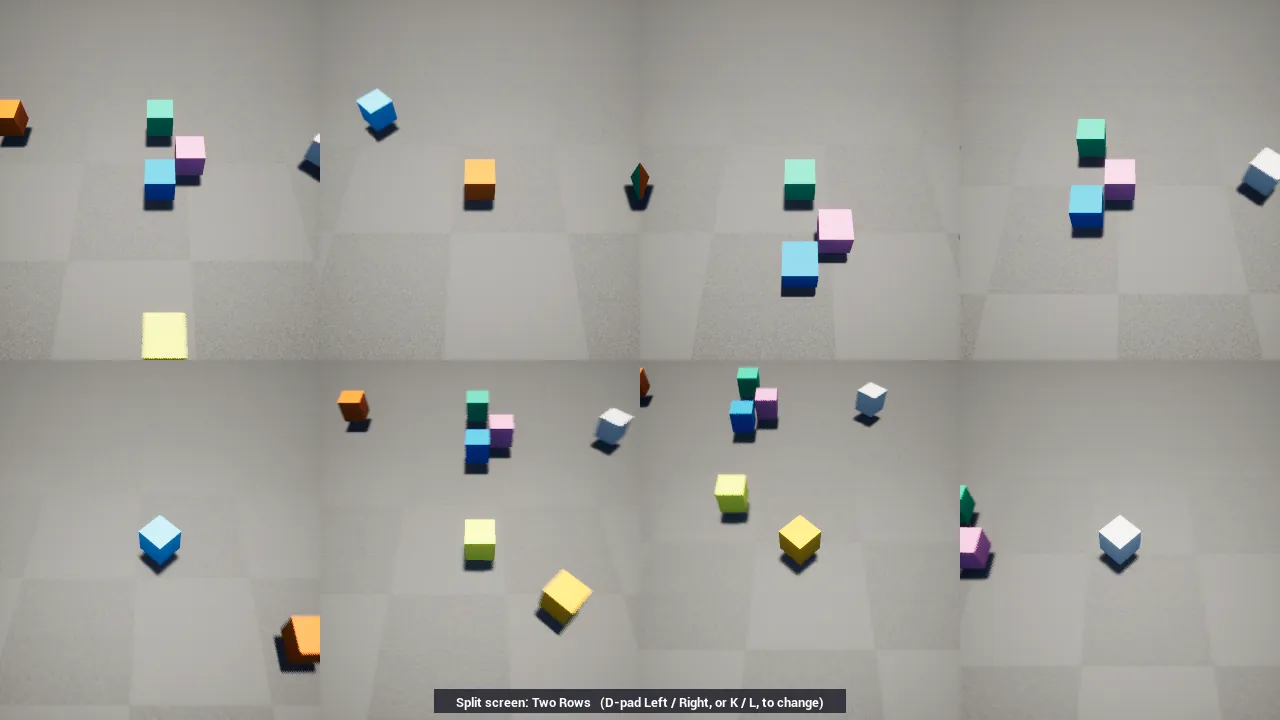
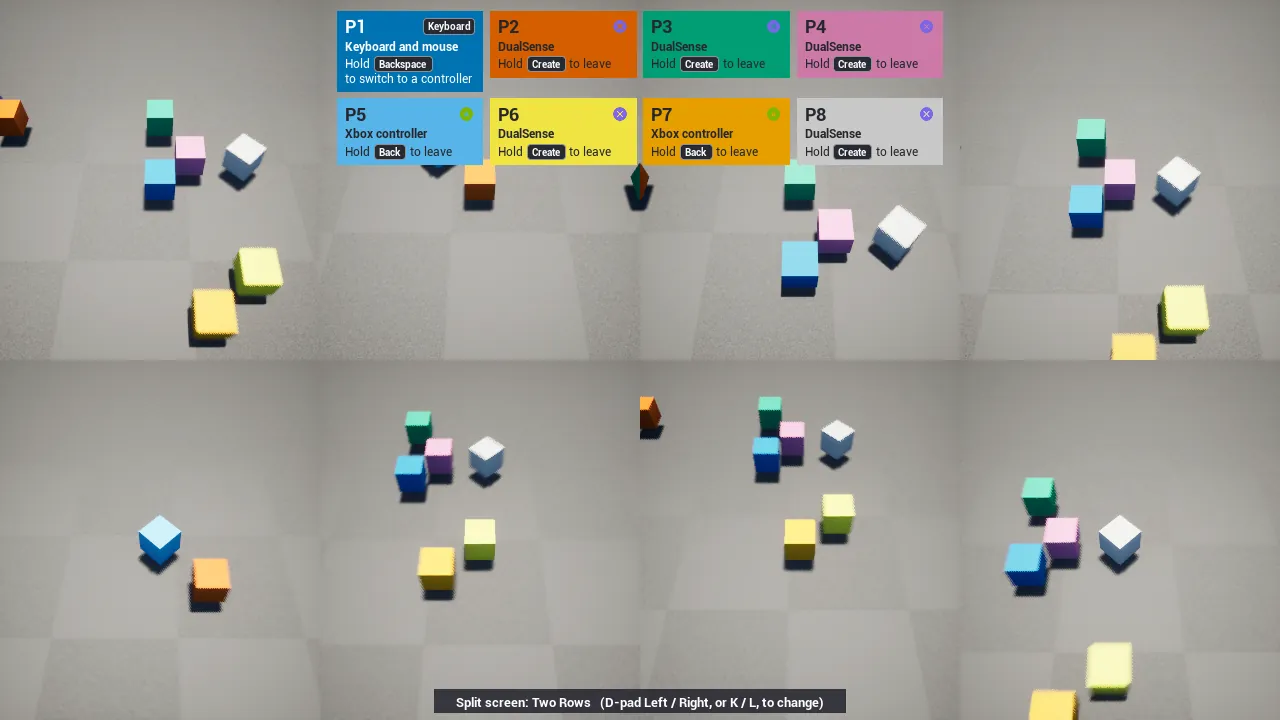
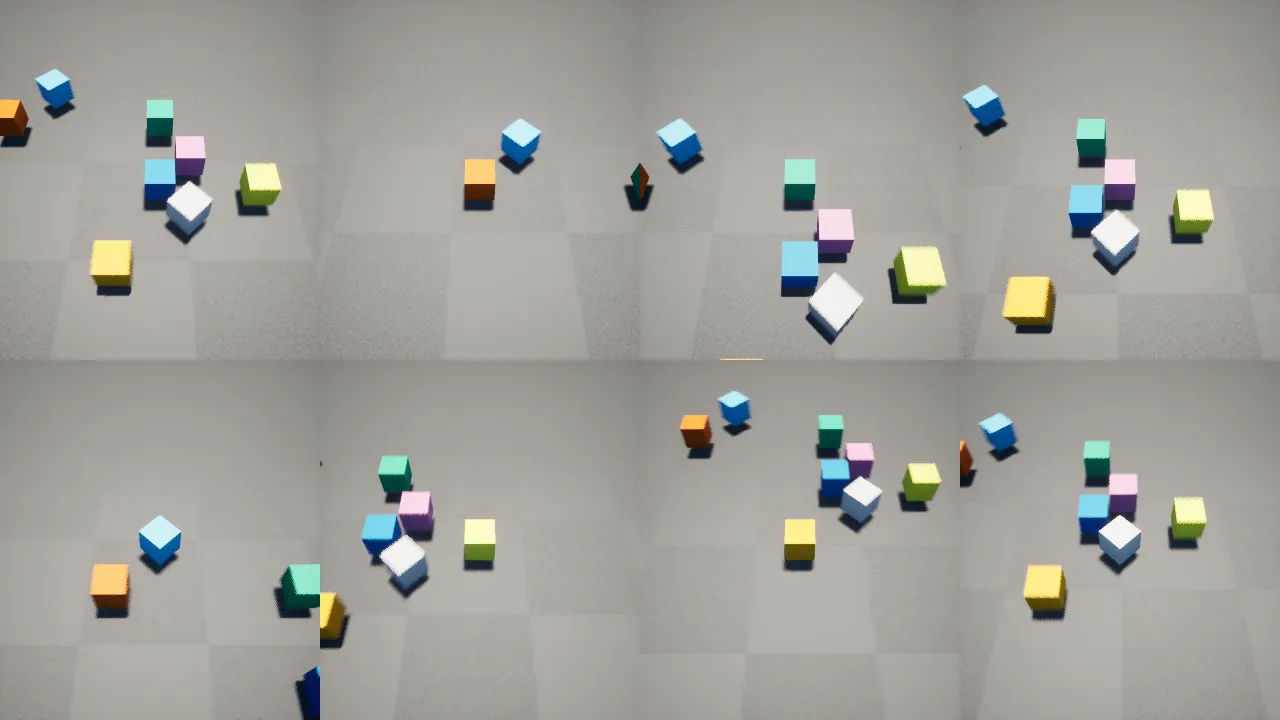
More settings: Card Anchor (where the row sits, 0-1; 0.5, 1 puts it at the bottom), Card Scale, Card Max Width (the row wraps to a second row beyond it), Card Opacity. In the sample, Start / Options opens the menu; Player cards switches the mode live.
Every player gets a pawn
A player who joins needs a pawn to see the world. If their player start is blocked (another pawn or a wall stands on it), the engine's default spawn quietly gives no pawn, and that player's view stays black.
- The sample game mode spawns each pawn at its player start only when nothing stands there; otherwise at the nearest free spot (checked with the pawn's own collision shape against walls and other pawns). Your game mode can do the same with Find Free Spawn Transform.
- Ensure Pawn For Joined Players (on): if a joined player still has no pawn 0.3 s after joining, PadSeat finds a free spot near a player start, spawns the game mode's pawn there through Restart Player At Transform, and logs a warning saying so.
- PadSeat only steps in when your game did not spawn a pawn. Your own spawn rules come first: override Choose Player Start or Spawn Default Pawn For in your game mode, or spawn and possess yourself on On Player Joined. Players your game mode makes spectators are left alone.
- Turn it off if your game spawns pawns later on purpose (a character select first).
- The samples have 8 player starts each and spawn with "adjust if possible but always spawn".
5 to 8 players
Set Max Players to 5-8. PadSeat raises the engine's local-player limit to match.
- Joining, prompts, colors, lobby cards (two rows) and rumble all work for 5-8 players.
- Unreal's own split screen stops at 4 players, so PadSeat lays out 5-8 players itself in two rows. You can change the layout; see Customize screens.
- Windows limit: XInput handles at most 4 Xbox pads. Players 5-8 need PlayStation pads (the native layer has no such limit), the keyboard, or other pads.
Player colors and light bars
Each player has one color, and PadSeat uses it everywhere: lobby and join cards, focus outlines, the debug overlay and the PlayStation light bar.
- Developer: edit the palette in Project Settings > PadSeat > Player Colors (8 colorblind-safe defaults, add more if you like), or call Set Player Color at run time.
- Player: picks a color in the lobby (Left/Right) or through Color Index in their Player Settings (saved).
- Light bars: PadSeat sends the color again whenever it changes, including after a reconnect. Screen colors are sRGB while the LEDs are driven linearly, and green LEDs look brighter, so a warm color sent as-is reads yellow. Correct Light Bar Colors (on) converts the color for DualSense and DualShock 4 bars so they look like the screen color. The DualSense player LEDs show the player number.
- Default palette:
- Blue
- Vermillion (reads red on a light bar)
- Bluish green
- Reddish purple
- Sky blue
- Yellow
- Orange
- Light grey
6. Settings (Project Settings > Plugins > PadSeat)
| Setting | Default | Meaning |
|---|---|---|
| Auto Activate | on | Start routing with the game instance. |
| Mode | Auto | Auto, Solo or Coop. |
| Max Players | 4 | 1-8. |
| Route Menus | on | Make UMG/CommonUI follow the owning player (leave on). |
| Join Policy | Press To Join | Or Join On Connect, Manual. |
| Join Keys | Start/Options | Add A/Cross for a lobby screen. |
| Joining Enabled At Start | on | |
| Leave Keys / Leave Hold Seconds | Back/Share, 1.5 s | Empty list = leaving only from Blueprint. |
| Player 1 Can Switch Device / Device Switch Seconds | on / 10 s | Player 1's leave hold switches device instead; how long the switch waits. |
| Remove Player On Leave | on | Off keeps the local player and only frees its pads. |
| Join Fills Empty Players | on | Fill pre-created or disconnected players first. |
| Keyboard Mode | Own Player | See section 4. |
| Show Disconnected Widget / Z-Order | on / 500 | The reconnect message on the player's view. |
| Built-in UI | on | Off: PadSeat creates no widget and plays no UI sound; events and nodes only. |
| UI Theme | empty (built-in look) | A Co-op UI Theme data asset: fonts, sizes, colors, corners, ring, keycaps, sounds. |
| UI Text | empty | Your text for any sentence players read (String Table entries work). |
| Show Device Interface Names | off | "DualSense (GameInput)" instead of "DualSense". |
| Widget Classes (Join Panel, Player Card, Join Line, Disconnected View, Keep / Remove Question, Hold Ring, Toast, Device Switch Prompt, Layout Label, Lobby Card) | PadSeat's own | Your Widget Blueprint (child of the PadSeat class), or None to turn that piece off. |
| Player Colors | Okabe-Ito x8 | Used by focus outlines, join cards, overlay, sample cubes. |
| Focus Outline Thickness / Corner Radius / Show Labels | 4 / 6 / on | Co-op Focus Panel look. |
| CommonUI Gamepad Name Xbox / PlayStation / Generic | empty | Fill to have PadSeat set each player's CommonInput gamepad name. |
| Take Over Skip Assign Gamepad | on | Turn off the engine's half-fix while active and remove its fake devices. |
| Stop CommonUI Accept Clicks | on | See section 9. |
| Virtual Controllers (dev tool) / Key Sets / Allow In Shipping | off / 3 sets / off | Section 8. |
| Show Debug Overlay At Start | off | Section 7. |
| Per Player Settings | on | Give every player a saved settings object (below). |
| Player Settings Class | Co-op Player Settings | Your subclass, to add your own saved fields. |
| Icon Set | DA_PadSeatIcons | Texture icons for Co-op Button Prompt. Empty: drawn glyphs only. |
| PlayStation Route | PadSeat native | Native, GameInput or Off (section 3). Restart after changing. |
| Native PlayStation Yields To Steam Input | on | Started from Steam with Steam Input pads: leave PlayStation pads to Steam. |
| Pad Lights Follow Player Colors | on | Light bars in each player's color, DualSense player LEDs show the player number. |
| Correct Light Bar Colors | on | Convert screen colors so the light bar looks like them. |
| Touchpad Click Is Special Left | off | Also send the touchpad click as Gamepad Special Left. |
| Correct Engine Gamepad Sticks | on | Apply each player's stick settings to Xbox and GameInput pads too. |
| Stick Drift Threshold | 0.1 | Rest offset that counts as drift. |
| Keyboard Join Keys / Keyboard Leave Keys | Enter / Backspace | Keyboard as its own player in co-op. |
Per-player settings
Get Player Settings returns a player's own Co-op Player Settings object. It loads from save slot PadSeat_Player<N> (player 1 = PadSeat_Player1) the first time you ask for it. Fields: Vibration, Vibration Strength, Invert Look Y, Look Sensitivity, Volume, Color Index, Character Index, Display Name. Save Player Settings writes it; Reset Player Settings goes back to defaults (every SaveGame field, your subclass's too). A player who leaves and rejoins on the same seat gets their saved settings back. PadSeat itself reads Vibration and Vibration Strength (rumble), Volume (Play Sound For Player), Color Index (player color) and Character Index (lobby). Invert Look Y and Look Sensitivity are for your own input code.
Per-player key rebinding
Rebinding builds on Enhanced Input's own per-player user settings, so every player keeps their own keys:
- Turn on Project Settings > Engine > Enhanced Input > Enable User Settings. The one-click setup does this for you.
- In each rebindable Input Action (or mapping), set Player Mappable Key Settings with a Name. That name is the Mapping Name.
- Call Register Mapping Context For All Players with your mapping context once (for example on Begin Play).
- In a player's options menu: Wait For Player Key (that player's index) -> On Key Pressed -> Rebind Key For Player (Mapping Name, the key, slot First). It applies and saves at once. Get Player Mapped Key shows the current key; Reset Key For Player undoes it.
Rebind Key For Player returns false with a reason when it can't rebind (for example "no Enhanced Input user settings for this player" when Enable User Settings is off).
Rumble and per-player audio
- Play Rumble For Player (intensity, duration, large and small motors) rumbles only that player's pads. It is scaled by their Vibration Strength and skipped when their Vibration is off. Stop Rumble For Player stops it.
- Play Sound For Player plays a 2D sound at that player's Volume. Use it for UI and feedback sounds that belong to one player. All players still hear it through the same speakers: per-player audio here is per-player volume and mute. There are no separate audio devices. Controller speakers (DualSense) are not supported.
Split screen
Project Settings > PadSeat > Split Screen has one dropdown per player count:
| Players | Choices (default first) |
|---|---|
| 2 | Horizontal (top / bottom), Vertical (side by side) |
| 3 | Favor Top (one wide view on top), Favor Bottom, Vertical, Horizontal |
| 4 | Grid, Vertical, Horizontal |
| 5-8 | Two Rows, Columns, Custom (your rects in Custom Layouts) |
- At run time, one node does it: Set Split Screen Layout (player count, layout). Get Split Screen Layout Choices lists what fits a player count, Cycle Split Screen Layout moves to the next one (the sample binds it to D-pad Left/Right), and Get Split Screen Layout returns the current one.
- Set Split Screen Enabled (false) gives everyone player 1's view, for a party game on one screen. Set Custom Split Screen Layout still sets your own rects for any count. Reset Split Screen Layouts goes back to the Project Settings choices.
- Widgets made with Create Widget For Player follow each player's screen area.
7. Debugging
Tools > PadSeat > Status (editor): settings, the native PlayStation layer (each pad, reports, writes), the players and devices of a running Play session, and warnings (stick drift, GameInput limits, XInput's 4-pad limit, double input).
| Console command | Effect |
|---|---|
CoopKit.Dump | Prints mode, players (index, ControllerId, platform user, Slate user, pads, pad type, color) and every device's route: device 5 DualSense (GameInput) -> platform user 2 -> P3 -> Slate user 2. |
CoopKit.Overlay 1 / 0 | Shows or hides the same report on screen, live. |
CoopKit.Mode Auto/Solo/Coop | Switch mode. |
CoopKit.VirtualControllers N | 0 = off, 1-3 virtual controllers (section 8). |
The dump also lists any fake device ids the engine's Skip Assigning Gamepad to Player 1 created.
8. Developer virtual controllers
A developer tool for testing co-op without extra pads. Each key set is a virtual gamepad that the engine and PadSeat treat like a real one: it joins with its Start key and drives menus and gameplay. Its keys no longer reach player 1 while it is on. It works in PIE and standalone. It is off by default and refused in Shipping builds unless you turn on Allow Virtual Controllers In Shipping.
| Key set | Stick | A | B | X | Y | Start | Back | Acts as |
|---|---|---|---|---|---|---|---|---|
| IJKL | I J K L | U | O | Y | 9 | P | ; | Xbox |
| Numpad | 8 4 5 6 | 7 | 9 | 1 | 3 | + | - | PlayStation |
| TFGH | T F G H | V | B | C | R | 6 | 5 | Xbox |
Turn them on with CoopKit.VirtualControllers 3, the Virtual Controllers setting, or Set Virtual Controllers Enabled. Change keys and pad types in Virtual Controller Key Sets.
Test fill: 8 players with 4 real ones
To see 8 players on screen without 8 pads: start the game with -PadSeatTestFill (it raises Max Players to 8 for that session and puts it back when the fill stops) (or tick Test Fill At Start, or type PadSeat.TestFill 8 in the console). The log says when it is turned on and counts real players ("3 of 4 real players in"). Once 4 real players are in (any mix of pads and keyboard; PadSeat.TestFill 8 2 starts after 2), PadSeat adds virtual controllers as players 5-8. They move in circles, press Cross / A in turn (the sample rumbles on it), and every few seconds one takes a new color and the layout changes.
After 6 seconds, and every 10 seconds after that, the log gets one line per player and a total:
PadSeat TestFill: P3 (DualSense (PadSeat native)) PASS - pawn CoopKitSamplePawn_9, view 97% lit, input from its own controller, rumble routed (controller id 2 -> its user 2, checked without a buzz), color #009E73
PadSeat TestFill: P6 (virtual) PASS - pawn CoopKitSamplePawn_12, view 99% lit, input from its own controller, rumble routed (controller id 5 -> its user 5, rumble call), color #F0E442
PadSeat TestFill: 8/8 PASS (16 s in; next check in 10 s)
Each line checks: the player has a pawn (where the game mode gives pawns), their view is not black, input from their own controller reached them (real players: press any button; keyboard players: press a key), rumble is routed to them (their controller id leads to their own platform user, and every pad on that user is theirs), and their color is unique and is the color on their pad's light. The check never makes a real pad vibrate: only virtual players get a test rumble. To also feel a short buzz on each real pad, turn on Test Fill Rumble Real Pads; each player then sees "Test rumble" on their own screen a second before their pad buzzes. PadSeat.TestFill report checks now; PadSeat.TestFill 0 removes the virtual players. Developer tool: off in Shipping builds.
Use one PIE instance (Play > Number of Players = 1): local co-op lives in one game instance. A second PIE client stays inactive with a warning.
9. CommonUI notes
- PadSeat needs no CommonUI changes: once the device mapping and the Slate user agree, CommonUI's player lookups line up.
- A/Cross turning into a mouse click: CommonUI's analog cursor converts a gamepad's Accept into a left click whenever the game viewport has focus without mouse capture. Only player 1's real mouse is ever captured, so for players 2-4 every A/Cross press in gameplay becomes a click and your game never sees it. While PadSeat is active it sets
CommonUI.ShouldVirtualAcceptSimulateMouseButtonto 0 and restores it afterwards. Setting: Stop CommonUI Accept Clicks. CommonUI buttons still get Accept through CommonUI's action router, and plain UMG buttons through Slate's Accept navigation. - In CommonUI, a pad's first press switches that player's input method; the second press navigates (CommonUI behaviour, the same with or without PadSeat).
- The CommonUI join panel is not a back handler by default (CommonUI logs an error when a project has no default Back action). Tick Is Back Handler in a subclass if you have one.
10. The engine's own options
- Skip Assigning Gamepad to Player 1 (
bOffsetPlayerGamepadIds): moves gameplay input of pad N to player N+1. It never touches menus, does nothing with one player, and leaves fake device ids connected. PadSeat turns it off while active (setting above) and removes those devices. - Device Mapping Policy = Create Unique Platform User For Each Device (UE 5.6+,
[InputPlatformSettings_Windows InputPlatformSettings] input.DeviceMappingPolicy=2): correct co-op routing for gameplay and menus, but a lone pad drives nobody, there is no runtime switch and no join flow. If your game is always co-op with exactly one pad per player and needs nothing else, it may be enough. PadSeat works with any policy.
11. Tests
The plugin ships its automation tests (module CoopKitTests, never in Shipping). They simulate devices through the same engine calls XInput and GameInput make, and press keys through Slate's platform entry points, so no pads are needed.
UnrealEditor-Cmd.exe YourProject.uproject -game -RenderOffScreen -ExecCmds="Automation RunTests CoopKit" -TestExit="Automation Test Queue Empty" -unattended -nosplash -nosound
UnrealEditor-Cmd.exe YourProject.uproject -nullrhi -ExecCmds="Automation RunTests CoopKit.Editor" -TestExit="Automation Test Queue Empty" -unattended -nosplash -nosound
Game tests: Routing, Modes, Join, Keyboard, Reconnect, UIHelpers, EngineFix, Setup, Platform, Debug, VirtualControllers, FocusHighlight, Widgets, PlayStation, PadTypes, SplitScreen, Rumble, PlayerSettings, Rebinding, Lobby, Icons, SampleLayout, PlayStationReports (the native PlayStation parsers, with real captured DualSense reports), StickCorrection, Touchpad, EngineSticks, KeyboardSeat, EightPlayers, PadLights, SplitLayouts, LeaveHold, RumbleRouting (rumble reaches the right pad for players 1-8, with and without a pawn), Player1Device, DisconnectPolicy, PlayStationDisconnect (simulated silence, removal and failed writes), UnjoinedPadsQuiet, DisconnectPromptInput, JoinCards, StableSeats, JoinAnyButton, LiveDeviceDisconnect, FreeColors, StartupWarnings (no warning from PadSeat at startup), CardModes (every card mode), DeviceSwitch (player 1 switches keyboard -> pad, pad -> pad, pad -> keyboard, cancel, timeout), WidgetOverrides (every piece as your own class, and as None), UITheme, UIText (every sentence translatable and replaceable), EventsOnly (Built-in UI off).
Map tests run inside each sample map: -ExecCmds="Automation RunTests PadSeatMaps" with the map after the project path (/CoopKit/Samples/LocalCoop_Sample, SharedMenu_Sample, Lobby_Sample). PadSeatMaps.Players joins 1 to 8 players (with every player start blocked when player 4 joins) and checks each one's pawn, view, camera and screen area, captures a frame and checks that no view is black, then the layout keys and player 4's rumble. PadSeatMaps.TestFill runs the 8-player test fill and checks that it never makes a real pad vibrate. PadSeatMaps.Screens walks joining, a disconnect, a leave, 8 players, every card mode and a device switch, and with -PadSeatShots=<folder> saves each screen as a PNG. Editor tests: Setup (plan, run, undo, PlayStation configs parsed by GameInput's own struct), PIE (virtual controller joins and drives only its own menu focus), Samples, Icons (re-import of the bundled icon set), Status (the Tools > PadSeat > Status panel), StartupWarnings (no warning from PadSeat while the editor starts, Python names included). The latest results per engine are on the overview page.
12. Limits and untested
- Real hardware: routing, join, reconnect, menus, rumble, light bar colors and the keyboard seat were checked hands-on with three DualSense pads over Bluetooth on UE 5.7 (plus the keyboard and four simulated pads, 8 players). Xbox pads are proven with simulated XInput devices only; analog feel on real Xbox pads is unchecked.
- Platforms: Windows only. Consoles, Linux, Mac and Steam Deck are untested.
- UE 5.5 and older: not supported (UE 5.5's XInput gives pad 0 the keyboard's device id).
- RawInput plugin: not supported. It reports every device with the keyboard's id, so no kit can tell pads apart.
- Steam Input: PlayStation pads arrive as Xbox pads (icons show Xbox).
- Native PlayStation layer: checked on real DualSense pads over Bluetooth (section 3). DualSense over USB, DualSense Edge and DualShock 4 follow the published report layouts and pass the unit tests, but have not been checked on hardware. The touch surface (click and two-finger touch), light colors and the keyboard seat were confirmed hands-on on real DualSense pads; stick correction is tested headless only (unit tests, captured and synthetic reports). Gyro, adaptive triggers and the headset jack are not supported.
- Switch-off detection: the native layer's silence check, removal message and write check are tested with simulated silence, removal and failed writes. Switching real DualSense pads off mid-game was checked hands-on: detected within about a second, with the keep-or-remove prompt.
- GameInput route: one PlayStation pad and no rumble in our test (a GameInput limit). Use the native layer.
- Rumble on real pads: Xbox and GameInput rumble are tested as the values the engine sends, not the motors. Native PlayStation rumble was felt on a real DualSense.
- Steam Remote Play Together: untested (see section 14).
13. Troubleshooting
| Symptom | Fix |
|---|---|
| A second pad moves player 1 | Routing is not active: Auto Activate is off and nothing called Activate. Run CoopKit.Dump. |
| A pad drives nobody | It has not joined (co-op): press Start/Options. Or joining is off (CoopKit.Dump shows joining=off). |
| Player 2's A button does nothing in gameplay | CommonUI's Accept-click conversion; keep Stop CommonUI Accept Clicks on. |
| PlayStation pad not seen | Run PadSeat.PS: it says whether the native layer is on and why not (route, -unattended, started from Steam). Check the pad is paired and on. |
| PlayStation pad seen twice | Two routes read it (native + GameInput, or native + DS4Windows): set PlayStation Route to the one you want. |
| PlayStation pads on UE 5.6 | Use the native layer (the default): it works on 5.6, 5.7 and 5.8. GameInput is not available on 5.6. |
| PlayStation pad shows as Xbox, or doubled, with Steam | Started from Steam with Steam Input: Steam turns PlayStation pads into Xbox pads and the native layer steps aside. Either turn off Steam Input for PlayStation controllers in Steam, or leave it and accept Xbox prompts. |
| Only 4 Xbox pads work | A Windows XInput limit. Use PlayStation pads or the keyboard for players 5-8. |
| A character moves by itself | Stick drift. PadSeat measures the rest point when the pad connects; if the pad was held then, call Calibrate Sticks For Player, or raise the player's dead zone (Set Stick Dead Zone). Tools > PadSeat > Status lists drifting pads. |
| The keyboard player cannot join | The keyboard joins only in co-op, when player 1 also has a pad (otherwise the keyboard already is player 1). Check Can Keyboard Join. |
| Players 5-8 see nothing | Max Players must be 5 or more before they join. Check Get Player Screen Rect, and Set Split Screen Enabled (true). |
| One player's view is black | They have no pawn: their player start was blocked. Keep Ensure Pawn For Joined Players on (the log then says where PadSeat spawned them), or add more player starts. |
| The keyboard does nothing | Player 1 is a pad (Player 1 Device), so the keyboard is free: press Enter to give it its own seat, or set Player 1 Device to Keyboard and mouse. |
| A pad was switched off but its player shows no message | Check the log for "stopped responding" or "disconnected (no reports for 1.0 s)". If neither appears, run PadSeat.PS and send the output. |
| The sample shows a routing box at the bottom left | It is off by default; CoopKit.Overlay 0 hides it if a project turned it on (Show Routing Overlay on the sample game mode). |
| A pad that has not joined rumbles or lights up in player 1's color | Pads that have not joined are parked on a reserved user and get no rumble or color. If one does, run CoopKit.Dump and check which platform user the pad is on. |
| Player 1 cannot answer the keep / remove question | Use player 1's own pad (D-pad + Cross / A) or keyboard (arrows + Enter, Backspace = remove), or click. Another player's pad or a free keyboard cannot answer. |
| The log says "New Slate User Created ... User Index 99" | Harmless: 99 is where PadSeat parks input from pads that have not joined, so it moves nobody's menus. Slate makes that user the first time such a pad is pressed. |
| "stopped responding (error 1167)" at start | Harmless: Windows re-creates the Bluetooth link as the pad wakes; PadSeat reopens it with the same id before anyone joins. |
| Keyboard keys stopped working for player 1 | Virtual controllers are on (CoopKit.VirtualControllers 0), or Keyboard Mode is Disabled In Coop. |
| A Start press joined as a new player instead of pausing | Auto mode: that pad had never been used. See the caveat in section 4. |
| Rebind Key For Player returns false | Turn on Enhanced Input's Enable User Settings, give the action a Player Mappable Key Settings name, and call Register Mapping Context For All Players. |
| Button prompts show drawn glyphs, not icons | The key has no icon in the Icon Set, Use Icon Textures is off, or the Icon Set setting is empty. |
14. Steam Remote Play Together
Remote Play Together is Steam's own feature for streaming a local co-op game to a friend's PC. PadSeat has no online multiplayer of its own, and this setup is untested with PadSeat; what follows comes from Steam's documentation.
- Steam turns it on automatically for games tagged Local Multiplayer, Local Co-op or Shared/Split Screen (a checkbox in your Steamworks store settings). Only the host needs to own the game.
- Steam Input is always on during Remote Play. A guest's gamepad reaches your game as a Steam Input pad, which Unreal sees as an Xbox-style (XInput) pad. PadSeat treats it like a local pad: the guest presses Start to join. Whether a guest's PlayStation pad shows PlayStation icons is not confirmed; expect Xbox icons.
- XInput handles 4 pads at most, host and guests together.
- A guest's keyboard and mouse are merged with the host's by default, so they drive player 1. Ask keyboard guests to use a gamepad, or use Steam's
ISteamRemotePlayAPI (BEnableRemotePlayTogetherDirectInput) in your own code to tell them apart. PadSeat has no Steamworks dependency. - To detect a session, Steamworks has
SteamRemotePlay()->GetSessionCount()andBSessionRemotePlayTogether().
15. Credits
PlayStation report layouts: written from public protocol documentation and checked against SDL's HIDAPI drivers (zlib license); no code copied. See CREDITS.md in the plugin.
Button icons: Input Prompts by Kenney (www.kenney.nl), CC0 1.0 (public domain). License: Resources/Icons/LICENSE-Kenney-InputPrompts-CC0.txt. Credit is not required; it is given here anyway.
16. Node reference
Every Blueprint node PadSeat adds, with one example each. Player indexes start at 0: player 1 is index 0.
Most nodes are on the Local Co-op subsystem. Get it with Get Local Co-op (PadSeat), or with Get Game Instance Subsystem > Local Co-op Subsystem (PadSeat).
Routing and modes
| Node | What it does | Example |
|---|---|---|
| Activate | Starts routing. Only needed when Auto Activate is off. | Title screen Begin Play: Activate, then show your lobby. |
| Deactivate | Stops routing and gives the engine its own device mapping back. | Before a split-screen-free cutscene that must use only player 1. |
| Is Routing Active | Tells you whether routing is on. | Show a "co-op ready" icon only when it returns true. |
| Set Mode / Get Mode | Auto, Solo or Coop. | Pause menu "Single player" button: Set Mode (Solo). |
| Is Coop Active | True when each device drives its own player. | Show the second HUD only while it returns true. |
Joining and leaving
| Node | What it does | Example |
|---|---|---|
| Set Joining Enabled / Is Joining Enabled | Opens or closes joining. | Close joining during a boss fight; open it again in the hub. |
| Set Join Policy / Get Join Policy | Press To Join, Join On Connect, or Manual. | Party game: Join On Connect, so every pad that connects joins. |
| Set Max Players / Get Max Players | Sets the player limit, 1 to 8 (player 1 included). | A 2-player mode: Set Max Players (2). |
| Join With Device | Joins a device yourself and returns the player index. | Manual policy: on your "Press A" screen, join the device from the key event. |
| Leave Player | Sends a player away (not player 1). | "Leave" button in player 3's pause menu: Leave Player (2). |
| Begin Player Device Switch | The player's screen asks for a button on the controller they want (or Enter for a free keyboard); the first free device pressed becomes theirs. They keep number, color, pawn and settings. Esc or Circle / B on the old device cancels; after Device Switch Seconds they keep the old device. Player 1 also starts it by holding their leave button. | "Change controller" in player 2's options menu: Begin Player Device Switch (1). |
| Cancel Player Device Switch / Is Player Switching Device | Stops a switch (the old device stays); true while the player chooses. | Hide your own HUD prompt when Is Player Switching Device turns false. |
| Does Leave Hold Switch Device | True for player 1 when their leave hold switches device (Player 1 Can Switch Device). | Show "Hold Create to switch device" in your own HUD. |
| Join Keyboard As Own Player | Makes the keyboard a new player (co-op, when player 1 also has a pad). | A "Keyboard joins" button in the lobby. |
| Can Keyboard Join | True when the keyboard can join as its own player right now. | Show "Enter: keyboard joins" only when it returns true. |
| Get Keyboard Player Index | Returns which player the keyboard belongs to. | Show the keyboard icon on that player's card. |
| Get Leave Hold Progress | 0-1 while a player holds their leave button. | Draw your own leave meter on their HUD. |
| Show Player Toast / Get Player Toast | A short message on one player's screen for a few seconds. | "Controller disconnected. Keyboard still active." |
| Get Player Number | The number shown for a player (P3); it stays while they are in, even when someone before them leaves. | "P{number}" on your HUD. |
| Get Readable Text Color (library) | Black or white, whichever reads better on a color. | Text on a player-colored panel. |
| Find Free Spawn Transform | A spot near a transform where a pawn of that class fits without touching walls or other pawns. | Your game mode's Spawn Default Pawn At Transform: spawn there. |
| Get Leave Hint Text (library) | "Hold Create to leave" with that player's own button; for player 1 "Hold Backspace to switch to a controller" or "Hold Create to switch device". | Put it under each player's name in your HUD. |
Player 1's device
| Node | What it does | Example |
|---|---|---|
| Set Player 1 Device | First device to press a button, Keyboard and mouse, Any controller, or Specific controller type (with the type). | Options menu: "Player 1 uses: controller". |
| Get Player 1 Device / Get Player 1 Device Id | The current rule, and the device player 1 uses now (not valid while waiting for the first press). | Show a pad or keyboard icon next to player 1. |
| Describe Player 1 Device | "Player 1: DualSense (first device to press a button)". | A line in your settings screen. |
| Is Keyboard Free | True when the keyboard belongs to nobody (player 1 uses a pad). | Show "Enter: keyboard joins" only then. |
Player cards
| Node | What it does | Example |
|---|---|---|
| Set Card Mode / Get Card Mode | Top row, On each player's view, Hidden, While joining, or Custom. | A "HUD style" option in your settings menu. |
| Get Player Cards / Get Player Card Data | Number, color, readable text color, device text, pad type, keyboard or not, leave hint and button, screen rect, per player (number order). | Card Mode Custom: build your own card row from it. |
| Get Join Hint | "Press Options / Start / Enter to join" with only the buttons that can join now, and which ones. | Your own join line with Button Prompts. |
| On Player Card Data Changed (event) | Something on a card changed. | Rebuild your own cards here. |
Disconnects
| Node | What it does | Example |
|---|---|---|
| Set Disconnect Policy / Get Disconnect Policy | Ask player 1, Keep seat, or Remove after N seconds. | Party game: Remove after 5 seconds. |
| Keep Disconnected Player | Answers "keep their spot". | Your own prompt's Keep button. |
| Remove Disconnected Player | Answers "remove them" (the player leaves). | Your own prompt's Remove button. |
| Get Players Awaiting Decision | Players waiting for player 1's answer, oldest first. | Show one question at a time in your own UI. |
| Get Disconnect Prompt | PadSeat's question widget, if it is showing. | Move it, or play a sound when it appears. |
| Set Selected / Get Selected / Activate Selected (on the prompt) | The highlighted answer (0 Keep, 1 Remove) and choosing it. | Your own key binding for the question. |
Players and devices
| Node | What it does | Example |
|---|---|---|
| Get Num Players | Returns the number of local players. | Lobby: "3 / 4 players". |
| Get Players | Returns one row per player: index, controller id, pads, keyboard, disconnected, color, pad type. | Build the scoreboard from it. |
| Get Devices | Returns one row per device: label, pad type, player, platform user. | A "controllers" debug page. |
| Get Player Index For Device | Returns the player a device drives. | In a key event handler: whose button press was this? |
| Get Player Index For Slate User | Returns the player for a Slate user. | Custom Slate widget: map the focus user to a player. |
| Get Gamepads For Player | Returns a player's pads. | Count how many pads a player holds. |
| Is Player Disconnected | True while the player's pad is unplugged. | Pause the match while any player is disconnected. |
| Is Keyboard Device / Is Virtual Controller | Describes a device. | Skip keyboard devices in a "pads only" list. |
| Get Device Pad Type / Get Player Pad Type | Returns Xbox, PlayStation, Keyboard or Generic. | Pick which tutorial picture to show for player 2. |
| Get Device Description | Returns a readable label, such as "DualSense (PadSeat native)". | Show it on the player card. |
| Get Disconnected Widget | Returns the "controller disconnected" widget on a player's screen. | Restyle it at run time. |
| Set Keyboard Mode / Get Keyboard Mode / Is Keyboard Active | Keyboard options (section 4 of the guide). | Settings menu: "Keyboard is its own player". |
Colors
| Node | What it does | Example |
|---|---|---|
| Get Player Color | Returns the player's color: their pick from Player Settings or the lobby, else the palette color. | Tint player 2's nameplate. |
| Set Player Color | Overrides a player's color for this session. The light bar follows. | Team mode: Set Player Color (red) for every red-team player. |
| Reset Player Colors | Removes the overrides. | When the team mode ends. |
The palette is in Project Settings > PadSeat > Player Colors: 8 colorblind-safe colors by default, and you can edit or add entries. Players pick their color in the lobby (Left/Right) or through Color Index in their Player Settings. Every PadSeat widget and the PlayStation light bars use the same color.
Split screen
| Node | What it does | Example |
|---|---|---|
| Set Split Screen Enabled / Is Split Screen Enabled | Turns split screen on or off at run time. | Party mini-game on one shared screen: Set Split Screen Enabled (false). |
| Set Split Screen Layout | One node for any count: 2 players Horizontal / Vertical; 3 Favor Top / Favor Bottom / Vertical / Horizontal; 4 Grid / Vertical / Horizontal; 5-8 Two Rows / Columns / Custom. Returns false if the layout does not fit the count. | Options menu: Set Split Screen Layout (3, Favor Bottom). |
| Get Split Screen Layout / Get Split Screen Layout Choices | The layout used now for a player count, and the ones that fit it. | Fill a dropdown with the choices for the current player count. |
| Cycle Split Screen Layout | Moves the current player count to its next (+1) or previous (-1) layout and returns it. | D-pad Right in your pause menu. |
| Set Split Screen Layouts | Picks the engine layouts for 2, 3 and 4 players at once. | Racing game: 2 players Horizontal. |
| Set Custom Split Screen Layout | Sets your own rects for 2 to 8 players. | See Customize screens for a 5-player example. |
| Reset Split Screen Layouts | Back to the default layouts. | When leaving your custom-layout mode. |
| Get Player Screen Rect | Returns the part of the screen a player sees, in 0-1 space. | Place a player's HUD inside their rect. |
Rumble and audio
| Node | What it does | Example |
|---|---|---|
| Play Rumble For Player | Rumbles only that player's pads, scaled by their settings. | Player 3 takes damage: Play Rumble For Player (2, 0.7, 0.3). |
| Stop Rumble For Player | Stops it. | When the player dies. |
| Play Sound For Player | Plays a UI sound at that player's volume. | Menu click for player 2. |
| Get Player Volume | Returns that player's volume setting. | Show it on their options slider. |
Sticks: drift and dead zones
| Node | What it does | Example |
|---|---|---|
| Calibrate Sticks For Player | Measures where the player's sticks rest. Ask them to let go for half a second. | Options menu "Recalibrate sticks" button. |
| Set Stick Dead Zone / Get Stick Dead Zone | Sets a player's dead zone, outer dead zone, anti-dead-zone and drift calibration for one stick. Saved with Save Player Settings. | Options slider "Left stick dead zone" -> Set Stick Dead Zone (Left). |
| Is Stick Drift Detected | True when a stick rests off-centre by more than Stick Drift Threshold. Also returns the offsets. | On join, if it returns true, show "Your left stick drifts. Recalibrate?" |
Touchpad (PlayStation)
| Node | What it does | Example |
|---|---|---|
| Get Player Touchpad | Returns the click and up to two fingers (positions 0-1) of the player's PlayStation pad. | Swipe the touchpad to scroll the map. |
The touchpad also sends keys you can bind in Enhanced Input: PlayStation Touchpad Click, PlayStation Touch Finger 1 / 2 (buttons) and Finger 1 / 2 X / Y (axes, 0-1). The PS and Mute buttons have keys too.
Character select and lobby
| Node | What it does | Example |
|---|---|---|
| Set Player Character / Get Player Character Index / Get Player Pawn Class | Records and reads a player's character pick. | Your own character screen calls Set Player Character on confirm. |
| Get Pawn Class For Controller | Returns the picked pawn class, or a fallback. | Game mode override "Get Default Pawn Class For Controller". |
| Lobby: Set Player Ready / Is Player Ready | Sets or reads a player's ready state. | A "Ready" button for mouse users. |
| Lobby: Cycle Player Color / Cycle Player Character | Moves a player to the next free color or character. | Custom arrows on your own lobby cards. |
| Lobby: Get Player Character | Returns the character index a player has in the lobby. | Show the portrait. |
| Lobby: Is Counting Down / Get Countdown Remaining / Has Started | Reads the countdown state. | Big "3, 2, 1" text. |
| Lobby: Get Slot Text | Returns a card's text. | Read it in your own card layout. |
| Lobby: Handle Lobby Key | Sends a key to the lobby yourself. | Your own input handling forwards keys to it. |
| Lobby event: On Lobby Refreshed | Fires after every change. | Restyle the cards in your subclass. |
Player settings
| Node | What it does | Example |
|---|---|---|
| Get Player Settings | Returns the player's saved settings object (vibration, look, volume, color, character, sticks). | Options menu reads Invert Look Y from it. |
| Save Player Settings | Saves it to PadSeat_Player<N>. | Options menu "Apply" button. |
| Reset Player Settings | Puts the settings back to defaults (not saved until Save). | "Defaults" button. |
Rebinding
| Node | What it does | Example |
|---|---|---|
| Wait For Player Key (async) | Waits for the next key from that player's own devices only. | "Press a key for Jump" in player 2's options. |
| Rebind Key For Player | Maps a key for one player, applies and saves it. | On Key Pressed -> Rebind Key For Player (Jump). |
| Get Player Mapped Key | Returns the player's current key. | Show it next to the action name. |
| Reset Key For Player | Resets that player's key to the default. | "Reset" button on the action row. |
| Register Mapping Context For All Players | Registers the context's mappable keys for every player. | Game mode Begin Play. |
UI helpers (library)
| Node | What it does | Example |
|---|---|---|
| Get Local Co-op (PadSeat) | Returns the subsystem. | The start of most graphs above. |
| Create Widget For Player | Creates a widget owned by one player, on their screen area, with their focus. | Player 2's pause menu. |
| Focus Widget For Player | Gives one player's focus to a widget. | Shared menu: player 3 starts on the "Mage" button. |
| Get Player Index From Key Event / Pointer Event / Focus Event | Returns the player who sent the input. | In On Key Down of a shared menu. |
| Get Player Index Of Controller | Returns the player index of a Player Controller. | In a pawn: whose pawn is this? |
| Is Widget Focused By Player / Get Players Focusing Widget | Reports who is on a widget. | Show "P2" on the button player 2 is on. |
| Get Key Name For Player / For Pad Type / Get Friendly Key Name | Returns button names such as "Cross" or "A". | Tutorial text "Press Cross to jump". |
| Get Key Icon For Player / Get Key Icon | Returns the icon texture for the player's pad. | An image in your HUD. |
| Get Pad Type Name | Returns "PlayStation", "Xbox" and so on. | Show it on the player card. |
| Get Join Prompt Text | Returns "Press Start (Xbox) / Options (PlayStation) to join". | The empty card of a lobby. |
| Describe Player Slot | Returns a card's text for a slot. | Your own join panel. |
User interface
| Node | What it does | Example |
|---|---|---|
| Add Join Panel | Creates the join panel (Join Panel Class) and adds it to the viewport. | In your game mode's Begin Play: Add Join Panel (player 0). |
| Create UI Widget | Creates any built-in piece from its widget class (you add it to the screen). Nothing when the piece is off. | A Layout Label on your HUD. |
| Get / Set / Reset UI Widget Class | Which class a piece uses; your own class (or None) while the game runs. | A "minimal HUD" option: Set UI Widget Class (Toast, None). |
| Set Built-in UI Enabled / Is Built-in UI Enabled | PadSeat's widgets on or off; events keep coming. | Turn them off in a cutscene. |
| Set UI Theme / Get UI Theme / Get Active Theme (library) | Switch the Co-op UI Theme; the theme in use. | A "high contrast" option. |
| Get UI Text / Set UI Text / Get Default UI Text (library) | The sentence players read for an entry; change it while the game runs. | A language menu sets your own texts. |
| Get Split Layout Name (library) | "Grid", "Two Rows" (translatable). | Your own layout label. |
| Get Device Display Name | "DualSense", "Xbox controller", "Keyboard and mouse". | A "Now using DualSense" note in your HUD. |
| Get Toast Widget / Get Device Switch Widget | The built-in widget on a player's screen now. | Move it or animate it. |
| Get Device Switch Prompt / Get Device Switch Data | The prompt and its data (seconds left, keyboard offered, cancel key). | Your own device switch screen. |
| Get Last UI Sound / Get UI Sound Count | The last UI Theme sound PadSeat played. | Check your sounds are set. |
| On Player Toast | A note for a player (also with no toast widget). | Show it in your HUD's message area. |
| On Leave Hold Changed | A player started or stopped holding their leave button. | Your own hold meter. |
| On Device Switch Started / Ended | A player started choosing a new device; the choice ended (switched or not). | Pause that player's character while they choose. |
Widget classes to subclass in a Widget Blueprint: Co-op Join Panel, Co-op Player Card, Co-op Join Line, Co-op Lobby Card, Co-op Toast, Co-op Device Switch Prompt, Co-op Layout Label, Co-op Leave Hold Widget, Co-op Disconnected Widget, Co-op Disconnect Prompt. See PadSeat: make it your own.
Debugging
| Node | What it does | Example |
|---|---|---|
| Get Debug Report | Returns what CoopKit.Dump prints. | Write it to a log file from a bug-report button. |
| Set Debug Overlay Visible / Is Debug Overlay Visible | Shows the routing overlay (bottom-left). | Bind it to F10 in development builds. |
| Set Virtual Controllers Enabled / Are Virtual Controllers Enabled / Get Virtual Controllers | Turns the developer keyboard controllers on or off (not in Shipping). | Test 3 players on one keyboard. |
| Start Test Fill / Stop Test Fill / Is Test Fill Running / Get Test Fill Results | Adds virtual players up to 8 once enough real players are in, and checks every player (pawn, view, input, rumble, color). | A debug menu button "Fill to 8". |
Events (on the subsystem)
On Player Joined, On Player Left, On Device Assigned, On Device Lost, On Player Disconnected, On Player Reconnected, On Unjoined Device Pressed, On Coop State Changed, On Join Refused, On Player Pad Type Changed, On Players Changed. Example: On Player Joined -> spawn that player's HUD with Create Widget For Player. On Player Disconnected is where your own "keep or remove?" screen goes (turn off Show Disconnect Prompt first).
Widgets
| Widget | What it is |
|---|---|
| Co-op Disconnect Prompt | PadSeat's keep / remove question on player 1's screen, with hints in player 1's own button icons. Subclass it to restyle (On Disconnected Player Set gives you the player and color). |
| Co-op Join Panel | Joined players' cards plus the "Press ... to join" line. Is Slot Shown and Get Join Hint tell you what it shows. |
| Co-op Leave Hold Widget / Co-op Leave Ring | The ring that fills while a player holds their leave button. Subclass it, or use the ring in your own widget. |
Console commands
| Command | What it does |
|---|---|
CoopKit.Dump | Lists players, devices and routing. |
CoopKit.Overlay 1 / 0 | Shows or hides the routing overlay. |
CoopKit.Mode Auto/Solo/Coop | Switches the mode. |
CoopKit.VirtualControllers N | Turns on N developer controllers (0 = off). |
PadSeat.TestFill 8 / PadSeat.TestFill 8 2 / PadSeat.TestFill report / PadSeat.TestFill 0 | Test fill to 8 players after 4 (or 2) real ones; check now; stop. |
PadSeat.PS.SilenceTimeout 1 | Seconds without input before a PlayStation pad counts as disconnected. |
PadSeat.PS | Shows the native PlayStation layer: each pad, reports read, writes, light and rumble values. |
PadSeat.Setup [PlayStation] [Plan] / PadSeat.Setup Undo | Runs the one-click setup without dialogs, or undoes it (editor only). |
17. Customize screens
PadSeat decides where each player's view goes on the screen.
- The easy way: Project Settings > PadSeat > Split Screen has one dropdown for 2, 3, 4 and 5-8 players. At run time, Set Split Screen Layout (player count, layout) does the same in one node, and Cycle Split Screen Layout steps through the choices.
- 2-4 players use the engine's split-screen layouts.
- 5-8 players use PadSeat's own layouts (Two Rows or Columns). The engine stops at 4.
- Any count from 2 to 8 can use your own layout instead (Custom).
The default layouts
| Players | Layout |
|---|---|
| 1 | Full screen. |
| 2 | Top and bottom (Horizontal, default) or side by side (Vertical). |
| 3 | Favor Top (default: one wide view on top, two below), Favor Bottom, Vertical or Horizontal. |
| 4 | Grid (default), Vertical or Horizontal. |
| 5 | Two rows: 3 on top, 2 below. Or Columns. |
| 6 | Two rows of 3. Or Columns. |
| 7 | Two rows: 4 on top, 3 below. Or Columns. |
| 8 | Two rows of 4. Or Columns. |
To have all players share player 1's view, call Set Split Screen Enabled (false). This suits party games on one screen.
Your own layout
Call Set Custom Split Screen Layout with the player count and one rect per player.
- A rect is a Box2D in 0-1 screen space. Min is the top-left corner and Max is the bottom-right corner.
- Player 1's rect comes first.
- The layout stays until Reset Split Screen Layouts.
- Set a layout for each player count you want to change.
Example: 5 players, player 1 big on the left
+-----------+-----+-----+
|           | P2  | P3  |
|    P1     +-----+-----+
|           | P4  | P5  |
+-----------+-----+-----+
Blueprint: Make Array with five Make Box2D nodes, then call Set Custom Split Screen Layout (Num Players = 5):
| Player | Min | Max |
|---|---|---|
| 1 | (0, 0) | (0.5, 1) |
| 2 | (0.5, 0) | (0.75, 0.5) |
| 3 | (0.75, 0) | (1, 0.5) |
| 4 | (0.5, 0.5) | (0.75, 1) |
| 5 | (0.75, 0.5) | (1, 1) |
C++:
#include "CoopKitSubsystem.h"

void AMyGameMode::UseFivePlayerLayout()
{
	if (UCoopKitSubsystem* Kit = UCoopKitSubsystem::Get(this))
	{
		const TArray<FBox2D> Rects = {
			FBox2D(FVector2D(0.0, 0.0), FVector2D(0.5, 1.0)),   // player 1
			FBox2D(FVector2D(0.5, 0.0), FVector2D(0.75, 0.5)),  // player 2
			FBox2D(FVector2D(0.75, 0.0), FVector2D(1.0, 0.5)),  // player 3
			FBox2D(FVector2D(0.5, 0.5), FVector2D(0.75, 1.0)),  // player 4
			FBox2D(FVector2D(0.75, 0.5), FVector2D(1.0, 1.0)),  // player 5
		};
		Kit->SetCustomSplitScreenLayout(5, Rects);
	}
}
The automated test CoopKit.EightPlayers uses this exact layout and checks the rects.
HUDs and menus per player
- Create Widget For Player puts a widget in that player's part of the screen and gives it that player's focus.
- Get Player Screen Rect returns a player's rect, for your own placement.
- Get Player Color returns the color for the player's border or name tag. It is the same color as their lobby card, focus outline and PlayStation light bar.
Things to know
- Player limit: set Max Players (Project Settings > PadSeat) to 5-8. PadSeat raises the engine's local-player limit to match.
- Xbox pads: Windows XInput handles at most 4 Xbox pads. Players 5-8 need other devices:
- PlayStation pads (PadSeat reads them itself),
- the keyboard (it can join as its own player),
- or other pads.
- Players you create yourself: if your code creates a 5th local player outside PadSeat, the engine's split-screen code logs a warning (an ensure). Players that PadSeat creates (joining) do not trigger it.
18. Make it your own
PadSeat ships with a working UI so you can test co-op on day one. You can restyle every piece of it, swap any piece for your own Widget Blueprint, rewrite or translate every sentence, or turn the built-in UI off and drive your own screens from events. None of this needs C++.
| You want to | Use |
|---|---|
| Change fonts, sizes, colors, corners, the hold ring, button keycaps, UI sounds | A UI Theme data asset (18.1) |
| Replace one piece (the cards, the toast, the question...) with your own design | A widget class for that piece (18.2) |
| Change or translate what players read | UI Text (18.3) |
| Build all the UI yourself | Built-in UI: off, plus the events and nodes (18.4) |
Everything is in Project Settings > Plugins > PadSeat > User Interface.
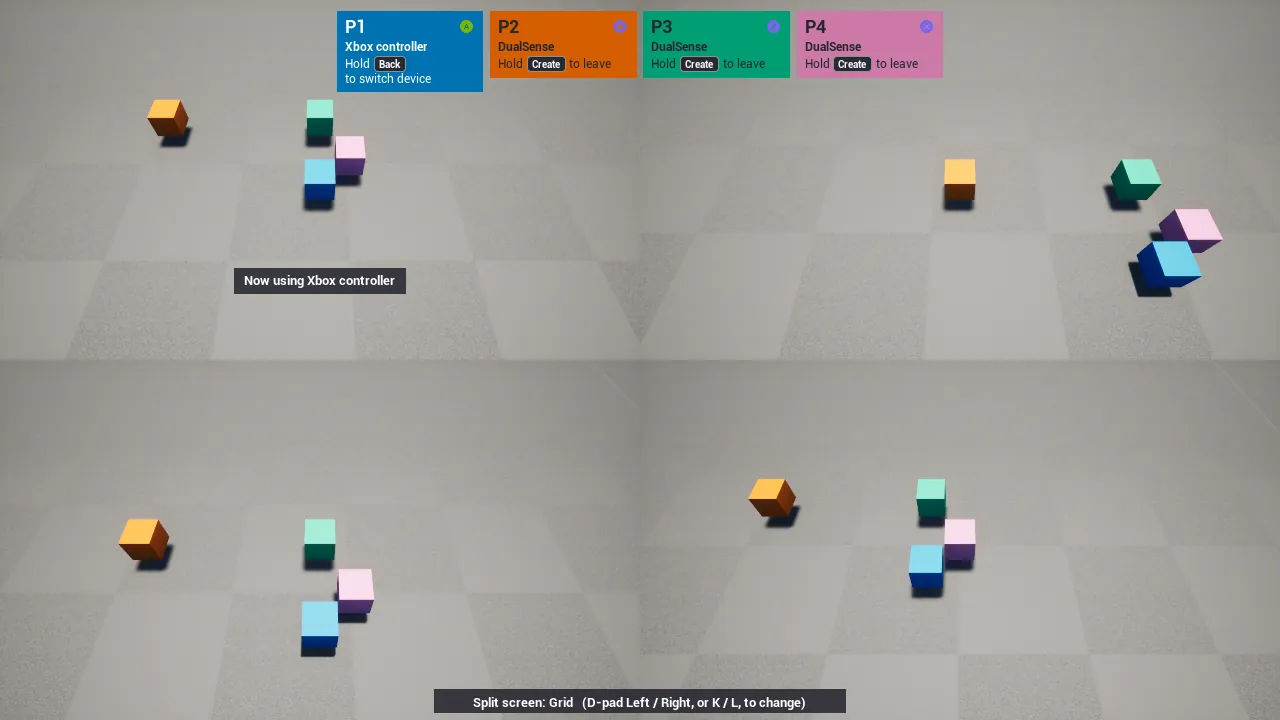
18.1 UI Theme
- Content Browser > right-click > Miscellaneous > Data Asset > Co-op UI Theme.
- Open it and change what you like. Every field starts at the built-in look.
- Project Settings > PadSeat > User Interface > UI Theme: pick your asset.
To switch themes while the game runs (a "high contrast" option, a different look per level), call Set UI Theme with another asset. The cards restyle at once; toasts, prompts and rings pick it up the next time they appear. Set UI Theme (None) goes back to the project setting. Get Active Theme tells you which theme is in use.
| Group | Fields |
|---|---|
| Fonts | Font (any Font asset), Bold and Regular typeface names, Title / Body / Message / Question / Headline sizes, Uppercase Titles |
| Player Cards | Card Width, Card Padding, Card Corner Radius (0 = square), Card Gap, Card Outline Width and Color, Empty Card Color, Disconnected Darken, Badge Size |
| Plates (toasts, join line, layout label, question, device switch prompt) | Plate Color and Opacity, Plate Corner Radius, Plate Padding, Plate Text Color, Plate Detail Color, Flash Color (join line), Backdrop Color (disconnected view), Button Color (question) |
| Hold Ring | Ring Size, Ring Thickness, Ring Track Color, Ring Fill Curve (how the ring fills over the hold; the hold time itself is Leave Hold Seconds) |
| Button Prompts | Keycap (fill, outline, text color, corner radius, outline width) for keyboard keys and Options / Create / Share, Button Scale |
| Text Colors | Light Text and Dark Text: PadSeat picks whichever reads better on each player's color |
| Sounds | Join, Leave, Disconnect, Reconnect and Device Switch sounds (2D, empty = silent), Sound Volume |
Player colors stay in Project Settings > PadSeat > Player Colors, so the light bars on PlayStation pads match the cards.
Example: the samples ship an "Arcade" theme at /CoopKit/Samples/DA_PadSeatTheme_Arcade: a monospaced font, capital titles, rounded outlined cards, purple plates with yellow text, yellow keycaps and a thicker ring. Duplicate it as a starting point.
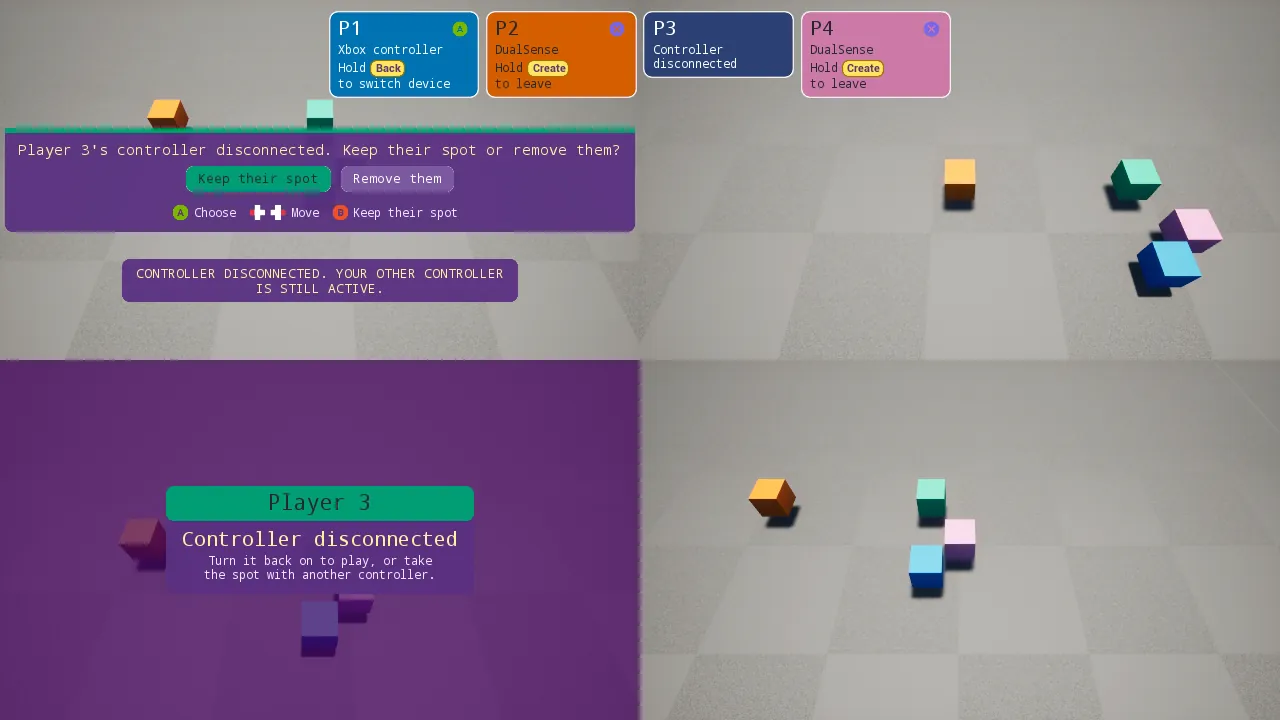
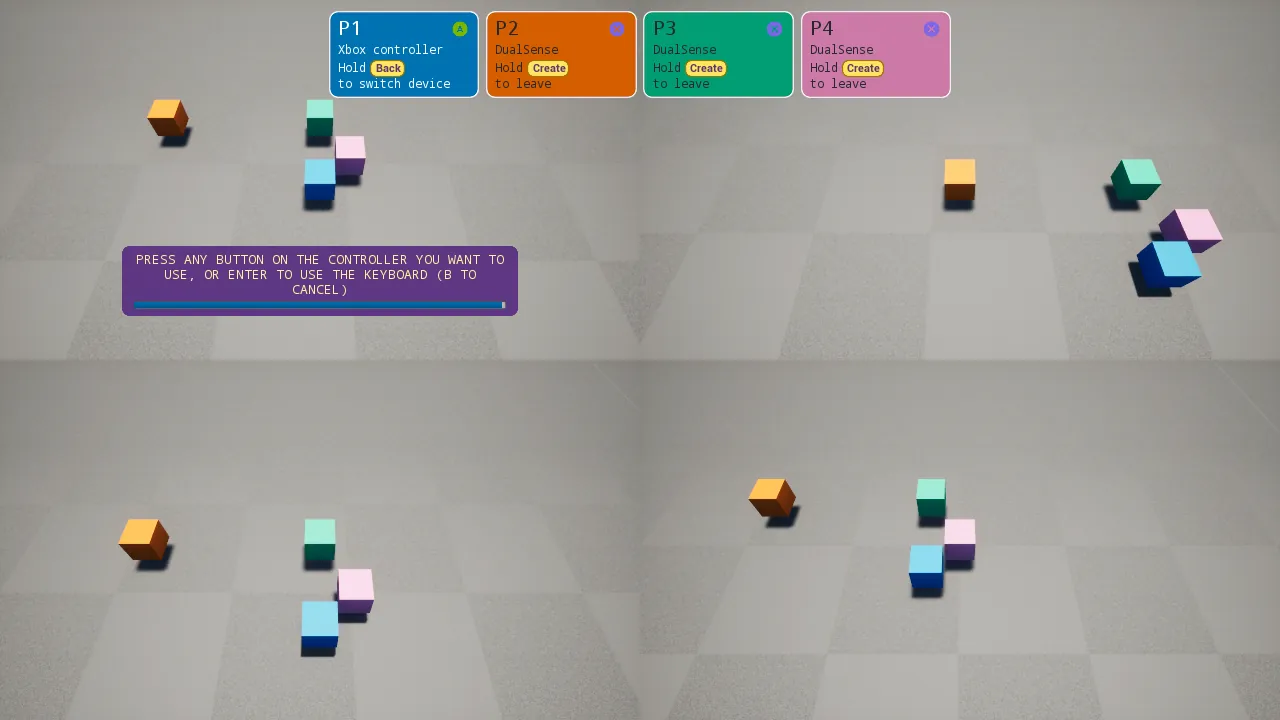
18.2 Your own widgets
Every built-in piece has a widget class in Project Settings > PadSeat > User Interface > Widget Classes. Each one starts at PadSeat's own class.
- Pick your own: create a Widget Blueprint with the PadSeat class below as its parent class, design it, and select it in the setting. Without a design of its own, a subclass keeps the built-in look (styled by the theme), so you can also subclass only to handle an event.
- None: that piece is off. PadSeat creates nothing for it, and you build it from the event in the last column.
- While the game runs: Set UI Widget Class (piece, class) overrides the setting for new widgets; Reset UI Widget Class goes back. Get UI Widget Class tells you which class a piece uses.
| Piece | Parent class | What your design gets | With None, use |
|---|---|---|---|
| Join Panel | Co-op Join Panel | On Slots Refreshed (all players); Get Card Widget, Get Join Line Widget | Add Join Panel returns nothing; place your own panel |
| Player Card | Co-op Player Card | On Card Data Changed: number, title, color, card color, text color, device text, pad type, keyboard or not, disconnected, leave hint, leave button, "to leave" / "to switch device", screen rect | Get Player Cards, On Player Card Data Changed |
| Join Line | Co-op Join Line | On Join Line Changed: shown, the text, which buttons can join (PlayStation, Xbox, keyboard), the flash when a free pad presses a button, the join keys | Get Join Hint, On Unjoined Device Pressed |
| Disconnected View | Co-op Disconnected Widget (or any widget) | On Player Index Set; Get Message Text | On Player Disconnected, On Player Reconnected |
| Keep / Remove Question | Co-op Disconnect Prompt | On Disconnected Player Set (player, color); Choose Keep, Choose Remove | On Player Disconnected, then Keep / Remove Disconnected Player |
| Leave / Switch Hold Ring | Co-op Leave Hold Widget | On Leave Progress (0-1, color); Hold Player Index; Device Switch (player 1's hold); Get Hold Label | On Leave Hold Changed, Get Leave Hold Progress, Does Leave Hold Switch Device |
| Toast | Co-op Toast | On Toast: message, player, player color, seconds | On Player Toast, Get Player Toast |
| Device Switch Prompt | Co-op Device Switch Prompt | On Device Switch Updated every frame: prompt, player color, seconds left of total, keyboard offered, keyboard key, cancel key | On Device Switch Started / Ended, Get Device Switch Prompt, Get Device Switch Data |
| Layout Label | Co-op Layout Label | On Layout Shown: layout name, the whole line, layout, player count; Hint and Show Seconds | Get Split Screen Layout, Get Split Layout Name |
| Lobby Card | Co-op Lobby Card (or Co-op Player Card) | On Card Data Changed plus On Lobby State Changed: ready, can pick color, can pick character, character name | the lobby's On Player Ready Changed, Get Player Character |
Create UI Widget (piece, owning player) creates the configured class for you, for example a Layout Label for your HUD. It returns nothing when the piece is off.
Example: your own player card. New Widget Blueprint, parent class Co-op Player Card. Put a big image and a text in it. In the graph, override On Card Data Changed: set the image tint to Card Color, the text to Title, and show your own "P2 left" art when Disconnected is on. Pick it under Player Card Class. The join panel now uses your card for every seat, placed by the Card Mode as before.
18.3 Text
Every sentence PadSeat shows comes from one list (UI Text). Each entry is:
- Translatable: namespace
PadSeat, key = the entry's name (for examplePadSeat.LeaveHint). Gather the PadSeat plugin in the Localization Dashboard and translate it like your own text. - Replaceable: Project Settings > PadSeat > User Interface > UI Text: add an entry, pick it from the list, type your text or pick a String Table entry.
Keep the words in braces in your text, in any order: "Hold {Key} to leave" becomes "{Key} halten zum Verlassen", and PadSeat fills in the player's own button.
| Words in braces | Filled with |
|---|---|
| {Key} | the player's own button ("Create", "Back", "Backspace") |
| {Keys} | the join buttons that can join right now ("Options / Start / Enter") |
| {Number} | a player number |
| {Device} | a readable device name |
| {KeyboardKey}, {CancelKey} | Enter, and Circle / B (device switch prompt) |
| {Layout}, {Seconds}, {Players}, {Needed} | layout name, countdown, lobby counts |
- Set UI Text changes an entry while the game runs (for a language menu); empty goes back. The built-in UI refreshes at once. Get UI Text and Get Default UI Text read them.
- Device names are readable and translatable: "DualSense", "DualSense Edge", "DualShock 4", "Xbox controller", "Controller", "Keyboard and mouse". Turn on Show Device Interface Names to add how a pad is read ("DualSense (GameInput)"), useful while testing. Get Device Display Name gives the same name for your own UI.
- Button names on keycaps ("Cross", "Options", "Create") and layout names are translatable too.
18.4 Events only (Built-in UI: off)
Turn off Built-in UI in Project Settings > PadSeat > User Interface (or call Set Built-in UI Enabled while the game runs). PadSeat then creates no widget at all and plays no UI sound. Routing, joining, leaving, device switching, disconnect handling and every event and node keep working.
Build your screens from these:
| Your UI | Events and nodes |
|---|---|
| Player list or cards | On Players Changed, On Player Card Data Changed, Get Player Cards, Get Player Card Data |
| Join hint | Get Join Hint, On Unjoined Device Pressed, Can Keyboard Join |
| Leave / switch hold | On Leave Hold Changed, Get Leave Hold Progress, Does Leave Hold Switch Device |
| Disconnects | On Player Disconnected, On Player Reconnected, Is Player Disconnected, Keep / Remove Disconnected Player |
| Device switch | Begin / Cancel Player Device Switch, On Device Switch Started / Ended, Get Device Switch Data |
| Short notes | On Player Toast (PadSeat still decides when a note is due) |
| Button prompts | Co-op Button Prompt widget, Get Key Name For Player, Get Key Icon For Player |
| Colors and names | Get Player Color, Get Player Number, Get Device Display Name, Get UI Text |
18.5 Checked by the tests
- CoopKit.WidgetOverrides: every piece set to its own subclass shows that subclass and its events get the data; every piece set to None creates nothing while the events still fire.
- CoopKit.UITheme: a theme changes card width, fonts, capital titles, corners, outline, badge size, toast colors and corners, the ring's size and thickness, keycaps, and plays the join sound; the Arcade asset from Project Settings; back to the built-in look.
- CoopKit.UIText: all UI Text entries are translatable (namespace and key) and replaceable; German text shows on the join line, cards, hold ring, disconnected view, question, device switch prompt, layout label and lobby; Set UI Text at run time; readable device names with and without interface names.
- CoopKit.EventsOnly: with Built-in UI off, no PadSeat widget appears after a join, a toast, a leave hold, a disconnect and a device switch, no UI sound plays, and all the events arrive; turning it back on works while the game runs.
- PadSeatMaps.Screens: screenshots of the built-in look and the Arcade theme in the three sample maps.