

Blueprint Mover is an editor plugin for Unreal Engine (UE) 5.6 to 5.8 on Windows. It copies Blueprint members from one Blueprint into many, moves them up to a parent Blueprint, and renames a member or changes a variable's type in every Blueprint that uses it.
Version 1.0.0. The automated tests on UE 5.6 to 5.8 drive the engine and the panel's logic, and anything they don't cover says not tested. Three more tests click through the real panel with mouse and keyboard input, including the type picker and Edit > Undo and Redo; in those, the start of a drag and opening Blueprint editors are simulated. All three modes were also tried by hand in UE 5.7 on a pre-release build. Blueprint Mover is not related to Epic's Mover plugin for character movement.
| Word | Meaning in this guide |
|---|---|
| Member | Something a Blueprint declares: a variable, function, macro, component, custom event or event dispatcher. |
| Source | The Blueprint you copy or move members from. |
| Target | A Blueprint you copy members into. |
| Parent, child | A child Blueprint is made from a parent Blueprint (its parent class). It inherits the parent's members. The parent's parent is the grandparent. |
| Override | A child's own version of a function its parent declares. |
| Batch | Everything one click on Apply, Move or Rename changes. One batch is one undo step. |
1. Quick start
1.1 Install
- Put the plugin in your project's
Pluginsfolder (or install it from Fab) and check Blueprint Mover in Edit > Plugins. - Restart the editor when it asks.
Building the plugin from source needs Visual Studio with the Game development with C++ workload.
1.2 Open the panel
Click Tools > Blueprint Mover, or the Blueprint Mover button on the level editor toolbar. The panel is an editor tab, so you can drag its title to dock it next to your other panels. To hide the toolbar button, see Settings.
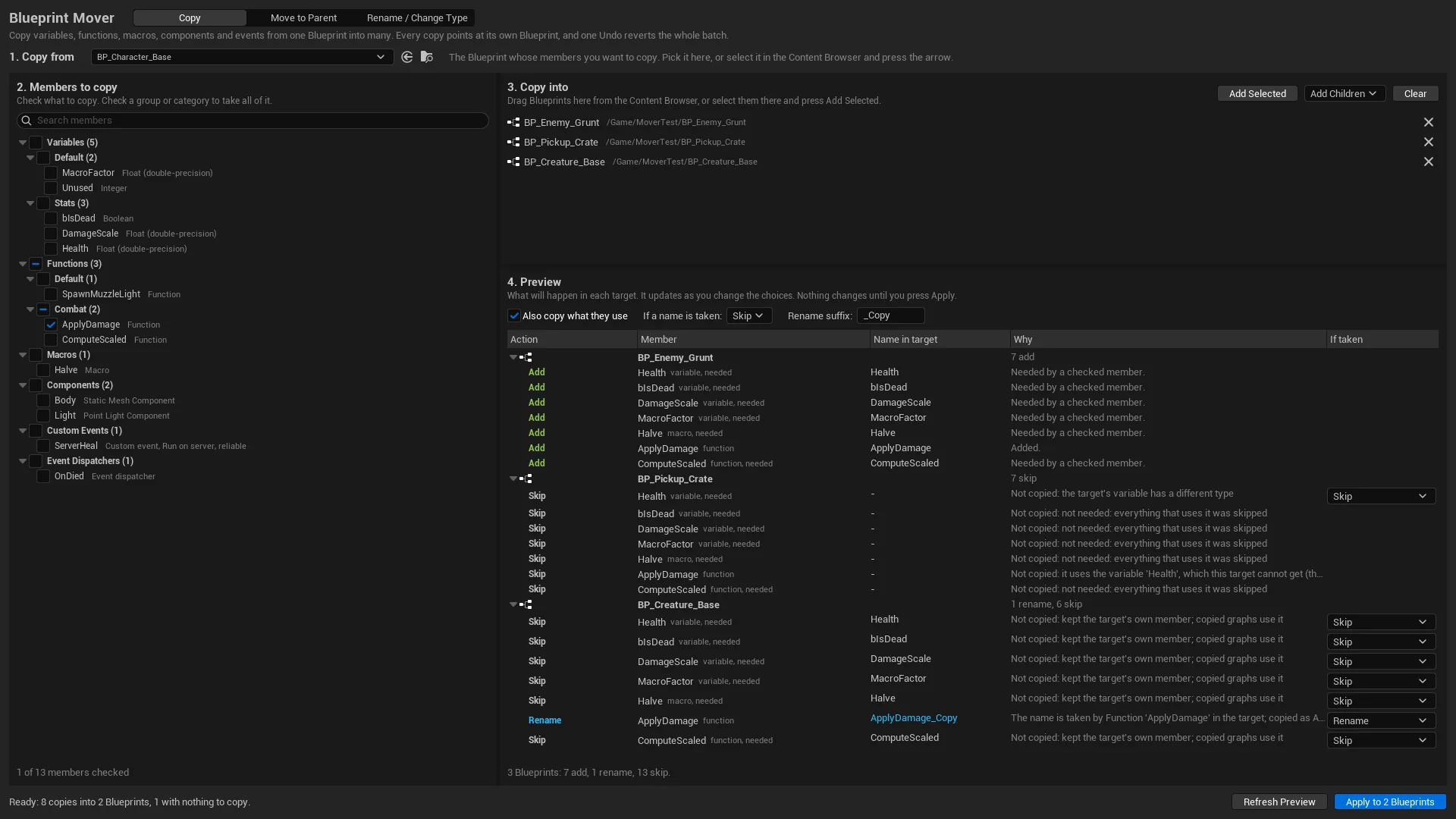
The three buttons at the top switch modes: Copy, Move to Parent and Rename / Change Type. Copy is selected when the panel opens. Each mode has four numbered steps, read top left to bottom right, and the status line at the bottom left says what to do next.
1.3 Your first copy
- Open the Content Browser (Ctrl+Space) and click Dock in Layout so it stays open next to the panel.
- In 1. Copy from, pick the Blueprint to copy from. Or select it in the Content Browser and press the arrow button next to the picker.
- In 2. Members to copy, check what you want, for example one function.
- Drag the Blueprints to copy into from the Content Browser onto 3. Copy into. Or select them in the Content Browser and click Add Selected.
- 4. Preview fills by itself, within a second: one row for each member in each target, with the action and the reason. The members your function uses are added too, marked "needed".
- Click Apply to 2 Blueprints (the number counts the targets that get something). The Report replaces the preview, and the status line says "Done: copied into 2 Blueprints. Edit > Undo reverts it in one step."
- Open a target. The new members are in its My Blueprint panel, and the Compile button shows a green check.
Apply compiles the Blueprints it changes but does not save them. Save when the result looks right (File > Save All). To go back, click Edit > Undo once. It reverts the whole batch.
2. Copy
Copy puts members of one Blueprint, the source, into many others, the targets. The source does not change. Every copied node is re-pointed to the target's own members, so nothing in a target refers back to the source. A last check scans each copied graph, and a copy that would still point at the source is refused, with the reason.
2.1 Pick what to copy
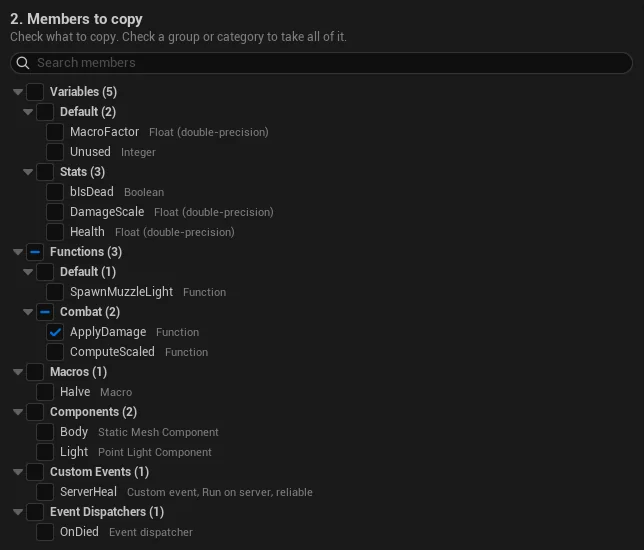
- Members are grouped by kind (Variables, Functions, Macros, Components, Custom Events, Event Dispatchers), then by category. Each one shows its type in dim text, for example "Float (double-precision)" or "Custom event, Run on server, reliable".
- Check a group or a category to take all of it. A group with only some members checked shows a dash.
- Search members matches the name, category, type and parent.
- Members the source inherits from a parent Blueprint say "inherited from" and the parent's name. You can copy them too.
- The construction script and the default scene root are not listed.
2.2 Pick the targets
- Drag Blueprints from the Content Browser onto 3. Copy into, or select them there and click Add Selected. The source, duplicates and assets that are not Blueprints are left out.
- Add Children has two entries. Children of the Selected Blueprints adds every Blueprint that inherits from the ones selected in the Content Browser, grandchildren included. Children of followed by the source's name adds the source's own children. Those already inherit the source's members, so most of their rows say Skip.
- The X at the end of a row removes that target. Clear empties the list.
2.3 Also copy what they use
On by default. When a checked function uses other variables, functions or macros of the source, those are copied too and marked "needed" in the preview, so the copies compile. Members that nothing needs are left out. Leave it on unless the targets already have everything the copied members use.
2.4 If a name is taken
A clash means the target already has a member with the same name. In Blueprints, functions and event dispatchers share one set of names, so a function can clash with a dispatcher too. Choose what happens:
| Choice | What happens to the member | The target's own graphs |
|---|---|---|
| Skip (default) | Not copied. The target keeps its own. Copied graphs use the target's member if it matches: the same type for a variable, the same inputs and outputs for a function. If it doesn't match, whatever needs it is not copied, and the row says why. | Unchanged. |
| Rename | Copied under a new name: the name plus the rename suffix, for example Health_Copy. Copied graphs use the new name. | Unchanged. They keep using their own member. |
| Replace | The target's member is removed and the copy takes its place. | They now use the copy. |
- If a name is taken, above the preview, sets the choice for the whole batch. The If taken dropdown on a clashing row changes it for that one member, in every target.
- Rename suffix is
_Copyunless you change it. Its starting value is in Settings. - A member the target inherits, or one built into its class, can't be replaced, so Blueprint Mover renames the copy instead. The same goes for a target event that is wired into other events, and for a target function that overrides one it inherits.
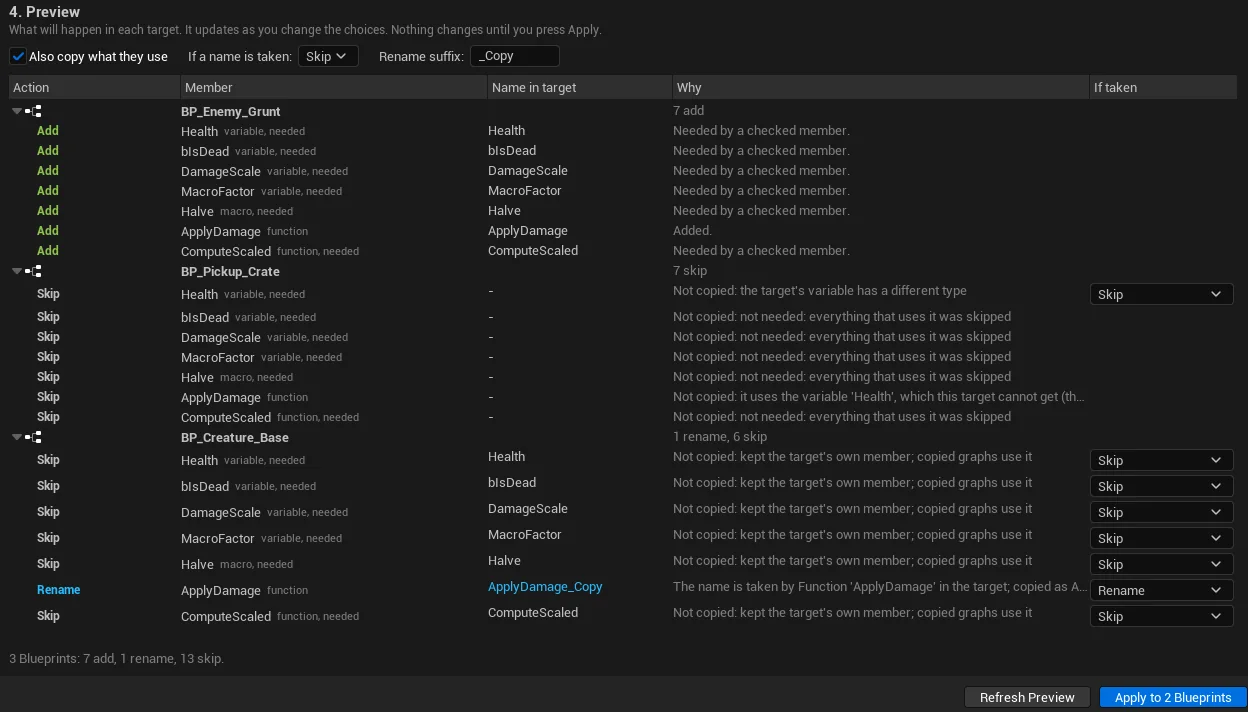
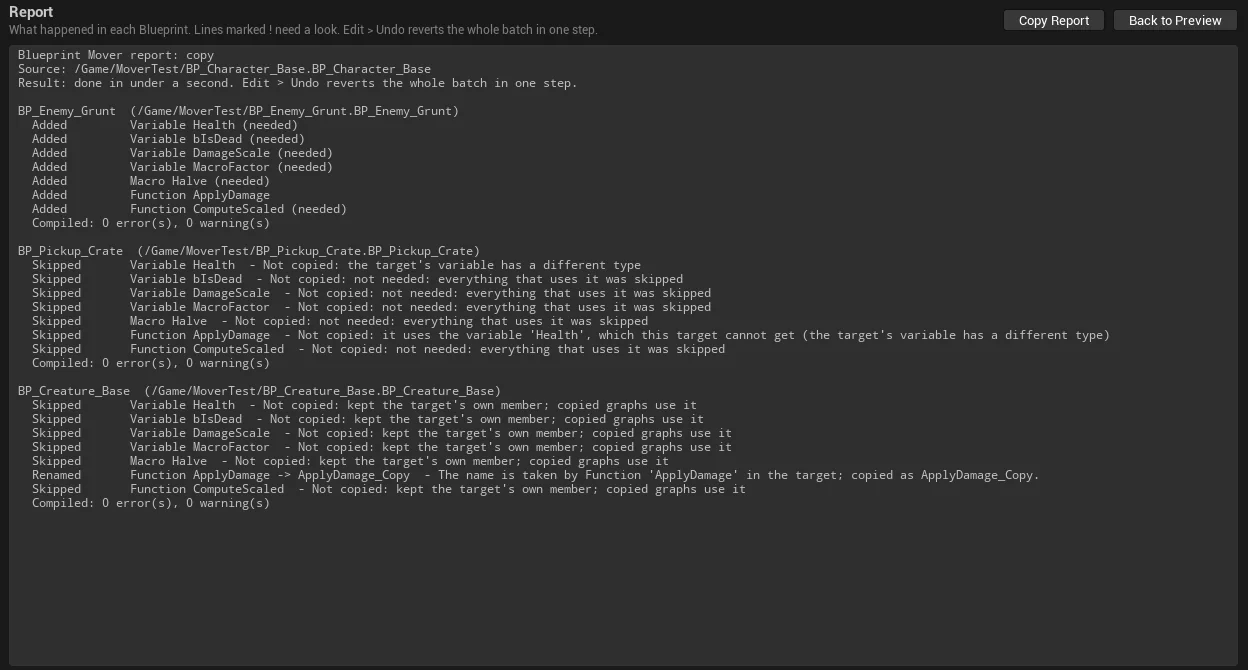
Example: the source's Health is a Float, and a target has its own Health that is an Integer. With Skip, Health is skipped because the types differ, and a function that uses Health is skipped too. Set the If taken dropdown on the Health row to Rename. Health is then copied as Health_Copy, and the function is added and uses it.
2.5 Read the preview
The preview refreshes by itself shortly after each change, and it changes nothing. Refresh Preview refreshes it at once, for example after you edit a Blueprint by hand.
| Column | What it shows |
|---|---|
| Action | What will happen, in color (see below). |
| Member | The member and its kind. "needed" means a checked member uses it. |
| Name in target | The name it gets in the target. |
| Why | The reason, in a plain sentence. Hover the row to read all of it. |
| If taken | On rows that clash: Skip, Rename or Replace for this member. |
The Action column uses these colors:
- AddCopied.
- RenameCopied under a new name.
- ReplaceReplaces the target's own member.
- SkipNot copied. The target keeps its own.
- Not supportedThis kind of Blueprint can't hold it, for example a component in a Blueprint that is not an Actor.
- RefusedThe copy would break, for example a function that adds components, going into a Blueprint that can't have components. The Why column names the problem.
Each target ends with a count, and the line under the preview counts the whole batch, for example "3 Blueprints: 7 add, 1 rename, 13 skip." Until everything is set, the status line names what is missing ("Check at least one member to copy.", "Add at least one Blueprint to copy into."). Then it reads, for example, "Ready: 8 copies into 2 Blueprints, 1 with nothing to copy." A target whose rows are all Skip gets nothing, so it is counted apart, and the Apply button counts only the Blueprints that get something.
2.6 Apply and the report
- Click Apply to N Blueprints, where N is the number of targets that get something. The button works once the preview is up to date and has something to copy.
- A progress window counts the targets and compiles. Cancel undoes everything the batch did so far, and the status line says "Canceled. Nothing was changed."
- If the copy would leave a target that compiled before with compile errors, Blueprint Mover undoes it at once and marks it Refused, with the compile error as the reason.
- The Report replaces the preview. For each Blueprint it lists what happened to each member (Added, Renamed, Skipped, Replaced, Not supported, Refused), the reason, and the compile result, such as "Compiled: 0 error(s), 0 warning(s)". Lines marked ! need a look.
- Copy Report puts the text on the clipboard. Back to Preview returns to the preview.
2.7 What gets copied
| Member | What comes with it |
|---|---|
| Variables | Type, default value, category, tooltip, Instance Editable, Expose on Spawn, Private, Read Only, SaveGame, Transient, Advanced Display, slider limits, replication (sending the value to other players in multiplayer) and RepNotify (a function that runs when a replicated value changes; it comes along). Tested with 17 types, from Boolean to arrays, sets, maps and structs. Vector, Rotator and Transform defaults copy exactly. |
| Functions | Inputs, outputs, local variables, every node and connection. Calls and variable nodes point at the target's own members. A function that overrides a parent function stays an override when the target inherits that function. A target that doesn't inherit it can't take the copy, and the row says so. |
| Macros | Inputs and outputs, local variables, nodes and connections. |
| Components | Values, category and attachment: under the copied parent component, under a target component with the same name, or at the target's root. Actor Blueprints only. |
| Custom events | Inputs, replication settings (Run on Server, Run on owning Client, Multicast, Reliable) and every node wired to the event. They go into the target's event graph, below its existing nodes. |
| Event dispatchers | Inputs. Bind and Call nodes point at the target's dispatcher. |
Inside copied graphs, Blueprint Mover also handles timelines, Delay nodes, Add Component nodes, split struct pins, calls to the parent function and Create Event nodes. A timeline whose name is taken is copied under a new name. The tests run each copied function on a target and on the source with the same inputs and compare the results.
3. Move to Parent
Move to Parent moves members from a child Blueprint up to its parent or grandparent. The child then inherits them. Use it when several children declare the same variable or function and it belongs in the parent.
3.1 Steps
- Click Move to Parent at the top of the panel.
- In 1. Move from, pick the child Blueprint.
- In 2. Members to move, check the members. Only the Blueprint's own members are listed. An inherited member moves from the Blueprint that declares it.
- 3. Move into lists the parent and every Blueprint above it, for example "BP_Weapon_Base (parent)". Pick one.
- Read 4. Preview, then click Move 3 Members (the number is how many members will move).
- To go back, click Edit > Undo once.
3.2 Options
- Also move what they use: members of the source that the checked members use move with them. Without them, the parent could not see what its new members need.
- Merge the same member in other Blueprints: other children of the destination that declare the same member give up their own copy and use the moved one. They keep their own values and component settings. A function with different nodes stays as an override.
3.3 The preview
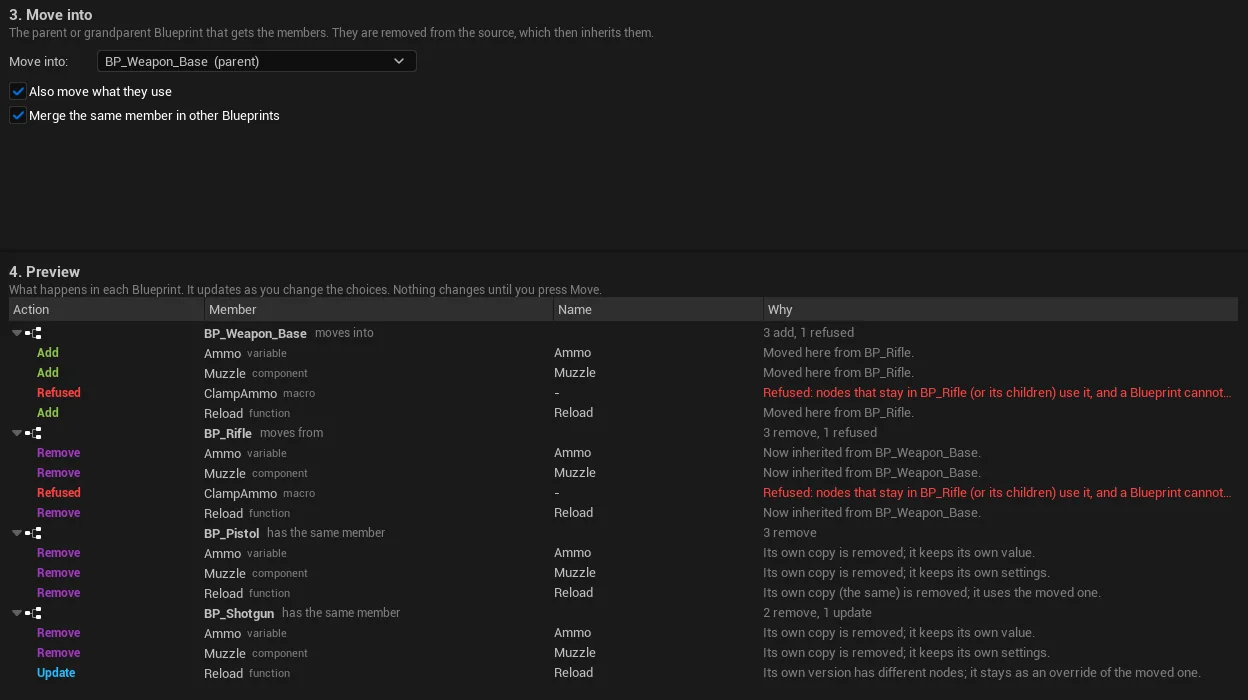
Each Blueprint in the preview has a role: moves into (the destination), moves from (the source), or has the same member (another child that declares it too).
The actions and their colors:
- AddAdded to the destination.
- RemoveThis Blueprint's own copy is removed. It inherits the moved member and keeps its own value or settings.
- UpdateIts own version has different nodes, so it stays as an override of the moved one.
- RefusedIt can't move. The Why column says why, and the rest of the batch still moves.
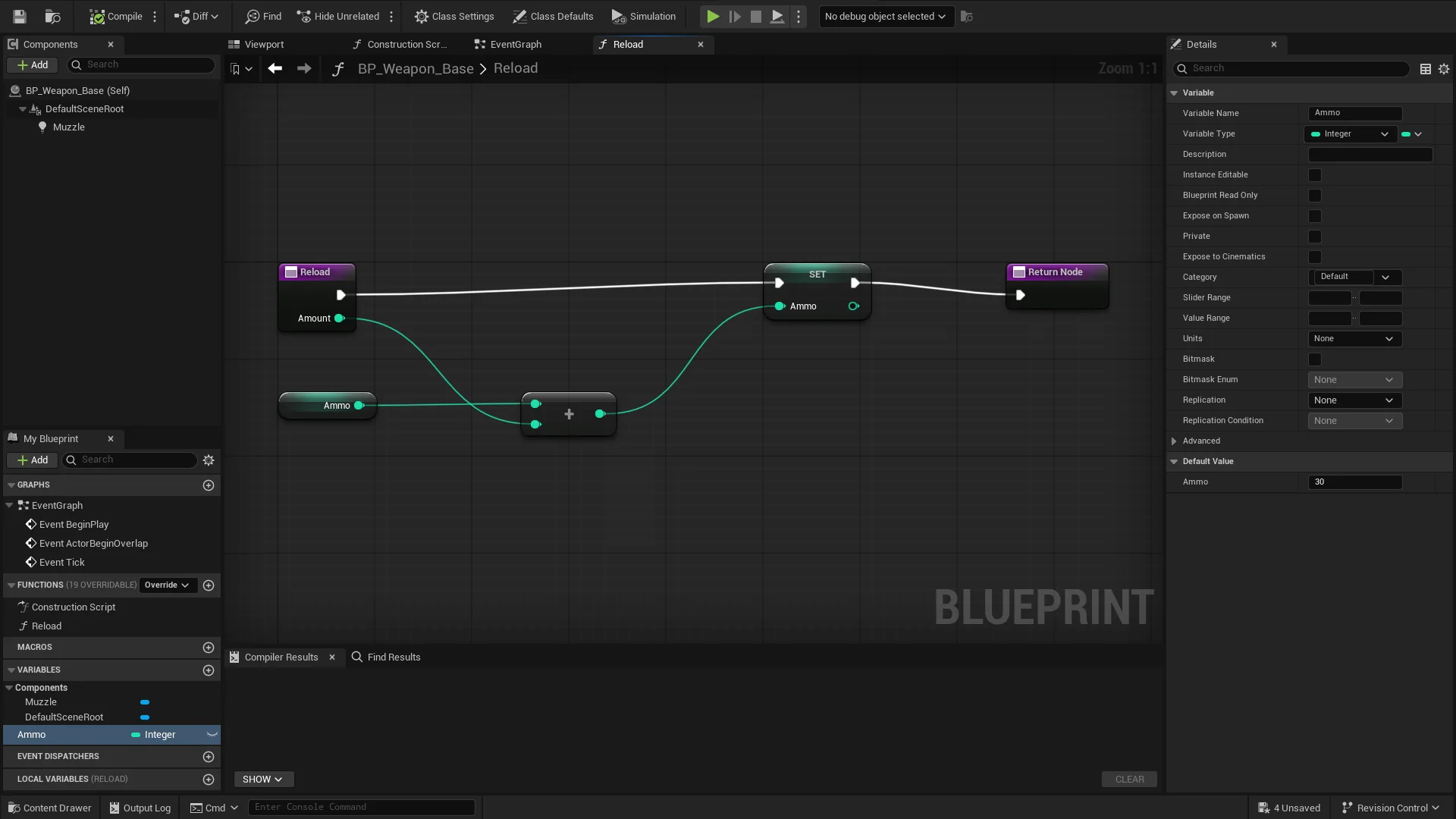
Example: moving Ammo, Reload and Muzzle from BP_Rifle into BP_Weapon_Base. BP_Weapon_Base gets 3 Add rows and BP_Rifle 3 Remove rows. BP_Pistol had identical copies, so it gets 3 Remove rows. BP_Shotgun's Reload has different nodes: its Ammo and Muzzle are removed, and its Reload stays as an override (Update). After the move, BP_Shotgun's Ammo still has its own default value.
3.4 What is kept
- Each child keeps its own value for a moved variable and its own settings for a moved component, grandchildren included.
- Other Blueprints that call or read a moved member through a reference keep working.
- Moved components go under the destination's root, and the destination keeps its own root.
- Custom events keep their replication settings, and the source's calls to them still work.
3.5 Refused rows and why
A refused row changes nothing. These are the reasons:
- The destination, or a Blueprint between it and the source, already has a member with that name.
- The member uses something that stays in the source. Check that too, or turn on Also move what they use.
- The member uses something that only a Blueprint in between has, so the destination can't see it.
- Another child has the same name with a different type, different inputs and outputs, or different nodes (for macros and custom events). Make them the same, or rename one first.
- Another child has its own copy, and Merge the same member in other Blueprints is off.
- A component is attached to a component that stays in the source. Move that one too.
- The member is private, and nodes that stay in the source use it. A child Blueprint can't use its parent's private members. Make it public first, or move what uses it too.
- Nodes that stay in the source, or in its children, still use the macro. A Blueprint can't use its parent's macros, because Unreal can't save that ("Illegal reference to private object"). Move the nodes that use it too.
- The move would leave a Blueprint that compiled before with compile errors. Blueprint Mover undoes it at once and names the Blueprint and the error.
4. Rename / Change Type
Rename a variable, function, macro, component, custom event or event dispatcher, or change a variable's type. Blueprint Mover updates every Blueprint that uses the member, as one undo step.
4.1 Steps
- Click Rename / Change Type.
- In 1. Blueprint, pick the Blueprint that declares the member.
- In 2. Member to change, select the round button next to the member. You change one member at a time.
- In 3. New name or type, type the New name. To change a variable's type, check New type and pick the type.
- Read 4. What changes, then click the button at the bottom right. It reads Rename, Change Type or Rename and Change Type.
4.2 What changes
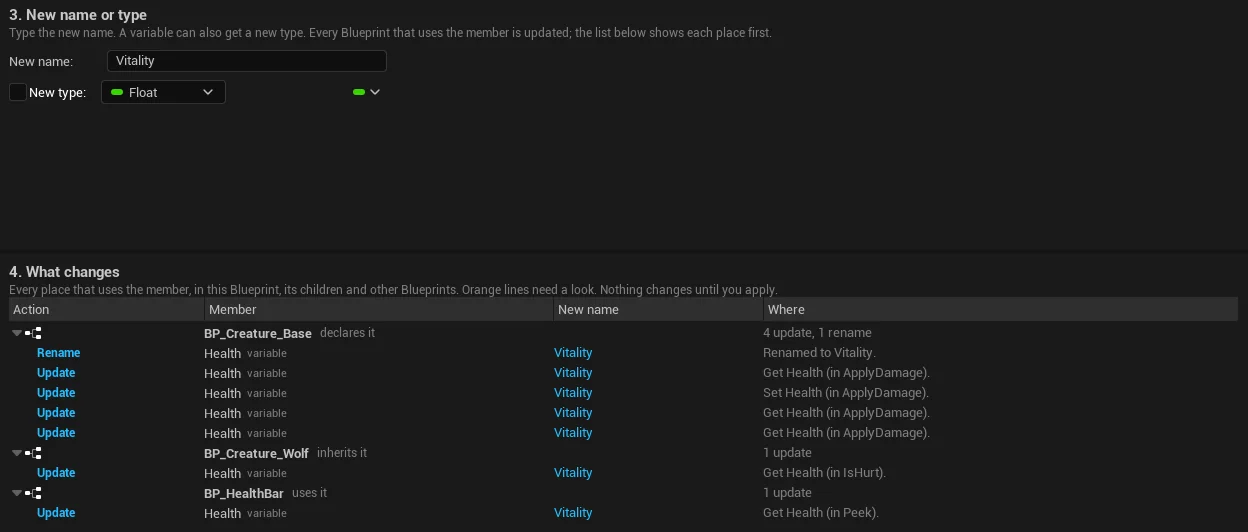
Blueprint Mover looks in the Blueprint, in its children, and in other Blueprints that reach the member through a cast or a reference variable. It finds children and users that are not open, too, through the asset registry (the editor's index of every asset). Each Blueprint in the list has a role: declares it, inherits it or uses it. The Where column names each node and its graph, for example "Get Health (in ApplyDamage)".
It updates Get and Set nodes (split pins included), calls, calls to the parent function, overrides in children, events that implement a parent function, Create Event nodes, event dispatcher Bind and Call nodes, Expose on Spawn pins on Spawn Actor nodes, component events, and children's component attachments and settings.
A function name typed as text, as in Set Timer by Function Name, is listed as a warning and not changed. Fix it by hand.
Example: renaming Health to Vitality in BP_Creature_Base lists 3 Blueprints. BP_Creature_Base (declares it) gets 1 Rename and 4 Update rows, BP_Creature_Wolf (inherits it) 1 Update, and BP_HealthBar (uses it) 1 Update. After Rename, the node in BP_HealthBar's Peek function reads Get Vitality.
4.3 Change a variable's type
- Variables only. Check New type and pick a type in the editor's own type picker.
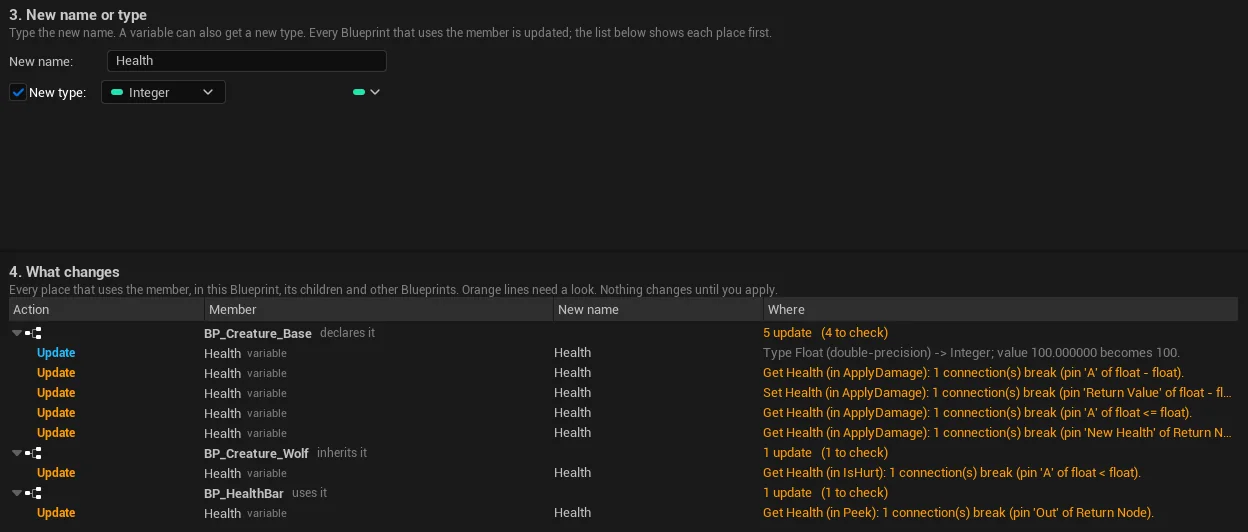
- Connections the new type can't keep turn orange in the preview before anything changes. Each orange row names the connection, for example "Get Health (in Peek): 1 connection(s) break (pin 'Out' of Return Node)". Only those connections are removed. The others stay.
- Split pins on the variable (a struct pin broken out into its fields) are joined back together.
- Values are converted where they can be: 100.0 becomes 100, and 80.5 becomes 80 (toward zero, like the Truncate node). A value that can't be converted is reported and reset to the default.
- Sets and maps can't replicate, so a variable changed into a set or map has replication turned off, as the engine does.
- After the change, open the Blueprints that had orange rows and reconnect what you need.
Example: changing Health from Float to Integer shows 6 orange rows, one for each connection an Integer can't keep. After Change Type, those connections are gone, and every Blueprint compiles with no errors.
4.4 What it refuses
Nothing changes, and the panel shows the reason, in these cases:
- The new name is already used in the Blueprint or in one of its children.
- The name has characters Unreal doesn't allow.
- Only the letter case differs. Unreal treats both as the same name.
- The member overrides a parent function. Rename the parent's function instead.
- The member is inherited. Rename it in the Blueprint that declares it.
- The member is a Blueprint Interface function. That is not supported yet.
- The type change is for something that is not a variable.
- The new type would disconnect an input that must stay connected, such as a node's Target. Connect that input to something else first.
5. Supported types
5.1 Member types
| Member | Copy | Move to Parent | Rename / Change Type |
|---|---|---|---|
| Variables | Yes | Yes | Rename and Change Type |
| Functions | Yes | Yes | Rename |
| Macros | Yes | Yes, see Known limits | Rename |
| Components | Into Actor Blueprints | Yes | Rename |
| Custom events | Yes | Yes | Rename |
| Event dispatchers | Yes | Yes | Rename |
Not offered yet: event graph events such as BeginPlay, and components a Blueprint inherits from its parent.
5.2 Blueprint types
| Blueprint type | Copy | Move to Parent | Rename / Change Type |
|---|---|---|---|
| Actor | Tested | Tested | Tested |
| Character, and other children of C++ classes | Tested | Tested | Not tested |
| Actor Component | Tested | Tested | Tested |
| Object | Tested | Tested | Tested |
| Data-only Blueprint | Tested | Not tested | Not tested |
| Child of another Blueprint | Tested | Tested | Tested |
| Blueprint Function Library | Not tested | Not tested | Tested |
| Blueprint Macro Library | Not tested | Not tested | Tested |
| Blueprint Interface | Refused as a target | Not tested | Interface functions refused |
| Animation Blueprint, Control Rig | Not tested | Not tested | Not tested |
"Not tested" means no automated test covers it yet. It may work. Read the preview, and use Undo if the result is wrong.
6. Undo
- Each Apply, Move or Rename is one undo step. Click Edit > Undo once to revert the whole batch in every Blueprint it changed: members, graphs, connections and default values.
- Edit > Redo puts the batch back, also after a wait.
- The panel updates after Undo and Redo.
- In the undo history, the step's name starts with "Blueprint Mover:" and says what it did.
- A rename and then a type change are two steps, so undo twice.
- Cancel while Apply runs rolls the batch back at once. Nothing is changed.
- Undo works within the editor session, like any other editor change. If you saved after Apply, save again after the Undo.
7. Settings
Open Edit > Editor Preferences > Plugins > Blueprint Mover.
| Setting | Default | What it does |
|---|---|---|
| Show Toolbar Button | On | Shows the Blueprint Mover button on the level editor toolbar. Uncheck it to hide the button. The panel stays in Tools > Blueprint Mover. |
| Rename Suffix | _Copy | Added to a member's name when Rename copies it under a new name. |
These settings are stored per user for each project, so everyone on a team sets their own.
8. Known limits
- Actors placed in levels: Rename / Change Type updates Blueprint assets. Not tested yet: values set on actors placed in a level for a renamed variable, and Level Blueprints that are not open. Check those by hand after a rename.
- Large projects: before its first preview, Rename / Change Type loads every Blueprint that references the one you change. In the stress runs, a rename used by 500 Blueprints took a few seconds. With thousands of them, that first preview may be slow.
- Macros and parents: a Blueprint can't use its parent's macros (an Unreal limit). Move to Parent refuses a macro that nodes staying in the child still use.
- Merging: another child's different function stays as an override only when its inputs and outputs match exactly. Otherwise the member is refused. Macros and custom events with different nodes are refused.
- Private members: Move to Parent refuses a private member that nodes staying in the child still use, because a child Blueprint can't use its parent's private members. Make it public first, or move those nodes too.
- Overrides: a function that overrides a parent function is copied only into Blueprints that inherit that function.
- Type changes: a type change that would disconnect an input that must stay connected, such as a node's Target, is refused. Connect that input to something else first.
- Not offered yet: event graph events such as BeginPlay, and components a Blueprint inherits from its parent. A custom event inside a collapsed graph is refused, and comment boxes around copied nodes are not copied.
- Blueprint Interfaces: refused as Copy targets. Renaming an interface function is not supported yet.
- Not tested: Animation Blueprints and Control Rig. See Supported types for the full table.
- Names typed as text: a function name in a text field, as in Set Timer by Function Name, is listed as a warning and not renamed.
- Saving: Apply compiles but does not save. Use source control or a backup before a big change.
- Platform: Windows only (Mac and Linux are not supported), in the editor. Nothing from the plugin goes into a packaged game. The panel is in English.
- Engines: UE 5.6 to 5.8. UE 5.5 and older are not supported.
9. Tests
Release candidate 1.0.0, 2026-11-10. On each engine, 155 automated tests (4,428 checks) run without an editor window. They check compile results, saving, reloading from disk, undo and redo, every re-pointed reference, and that copied functions return the same values as the source. Three more tests click through the real panel with mouse and keyboard input (422 checks), with Blueprint editors open during Move to Parent. A shutdown test quits the editor the normal way and checks that it exits cleanly.
These suites ran on the release candidate (code 38c85d5). The shipping zips (code 7079270) add one later change, the wording of the copy status line and the Apply button. UE 5.7 re-ran the two tests that cover it (status line 21 of 21 checks, Copy click test 118 of 118), and each shipping zip passed the install test below on its own engine.
| Engine | Tests | Checks | Click checks | Failed |
|---|---|---|---|---|
| UE 5.6.1 | 155 | 4,428 | 422 | 0 |
| UE 5.7.4 | 155 | 4,428 | 422 | 0 |
| UE 5.8.3 | 155 | 4,428 | 422 | 0 |
9.1 Release and stress checks
- Install: each shipping Fab zip was installed into a blank project on its own engine, built and opened, and passed 30 of 30 checks on UE 5.6, 5.7 and 5.8.
- Strict build: each zip's source compiled file by file, without precompiled headers or a unity build, with 0 errors and 0 warnings from the plugin.
- Plugin off and on: turning the plugin off and on again in the editor passed twice on each engine.
- Random stress runs: a test takes random steps (copy, move, rename, undo and redo on random Blueprints) from a fixed seed, so any failure can be replayed. 2,000-step runs passed on UE 5.6, 5.7 and 5.8, and 300-step runs through the panel with Blueprint editors open passed on all three. More seeds passed on UE 5.7 and 5.6. Every bug these runs found is fixed and has its own test.
- Scale: a copy into 1,000 Blueprints in one batch, then Undo and Redo; a rename used by 500 Blueprints; a move through a deep hierarchy; and Cancel in the middle of a batch, which rolls everything back.
- Editor start and quit: 20 cycles in a row on each engine, each opening the panel and running one operation, all exiting cleanly.
10. Support
Email support@barbedwireglovegames.games. To help us answer quickly, include:
- your engine version, for example 5.7.4;
- what you did, step by step;
- the report text (click Copy Report in the panel);
- any errors from the Output Log (Window > Output Log).
11. Changelog
1.0.0, first release (November 12, 2026)
- Copy variables, functions, macros, components, custom events and event dispatchers from one Blueprint into many, with every reference re-pointed to the target.
- Also copy what they use. Skip, Rename or Replace when a name is taken, chosen per member, with a rename suffix.
- Live preview with a reason on every row, a report after Apply, one undo step per batch, and Cancel with a full rollback.
- Move to Parent: to a parent or grandparent, merging the same member in other children, with their values and overrides kept.
- Rename / Change Type: every use updated in the Blueprint, its children and other Blueprints, with connections that break listed first.
- Tested on UE 5.6, 5.7 and 5.8: 155 automated tests and 4,428 checks per engine, plus 422 checks that click through the real panel. These suites ran on the release candidate; the later change to the copy status line was re-tested on UE 5.7, and each shipping zip passed an install test on its own engine.